Your store travels with you. Move the pin when you set the stall up and people nearby find you — without reprinting anything.
A stall has a problem a shop does not: today you are on one square and on Saturday on another, and whoever bought from you on Tuesday has no idea where to look.
JamboQR solves that with a single store. The days and hours are set once; the pin on the map moves with one tap when you arrive. And the QR code on your banner never changes.

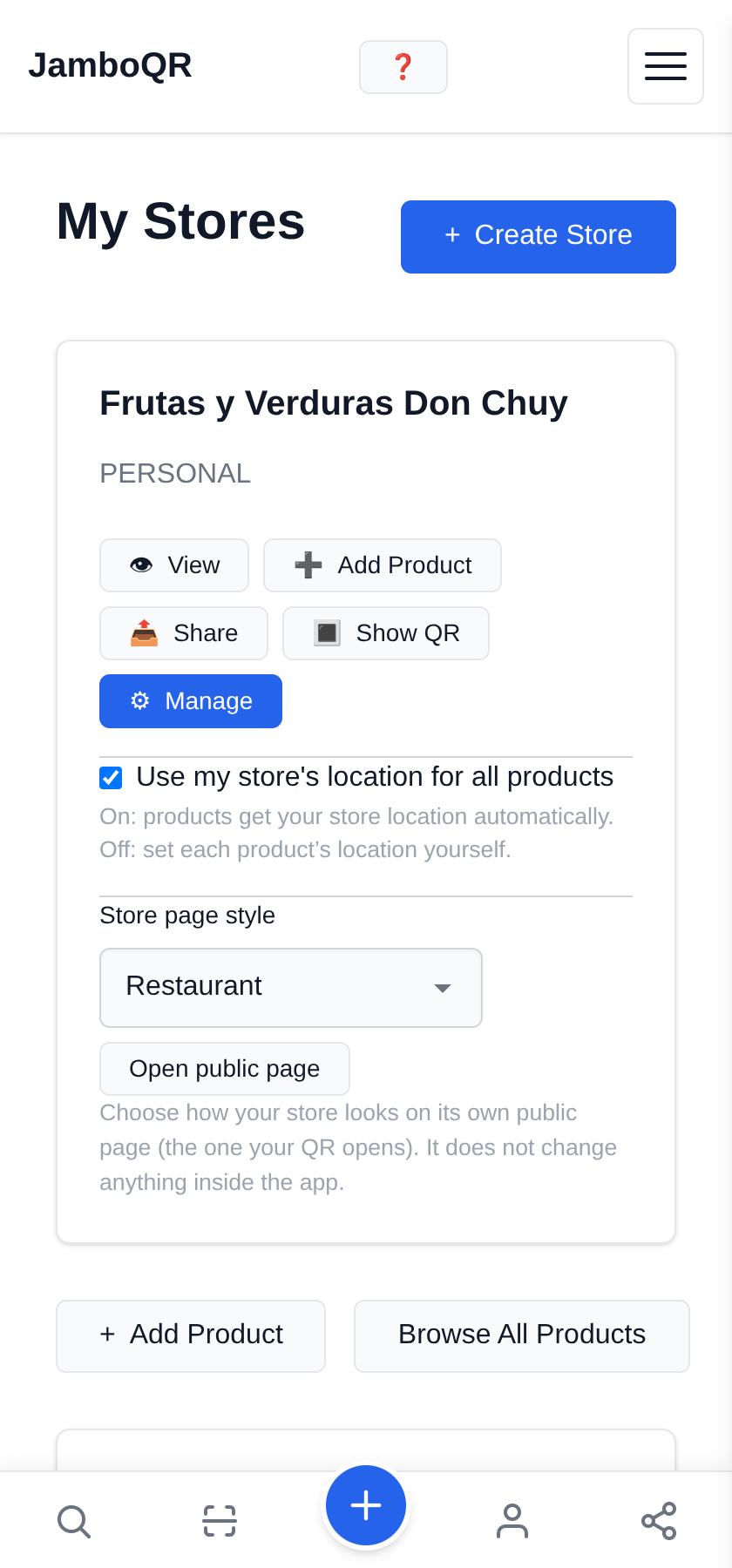
1 One store — the one you already have
You do not need a store per market. It is the same one that was created when you signed up, under My Stores, and it is the one that will travel with you.
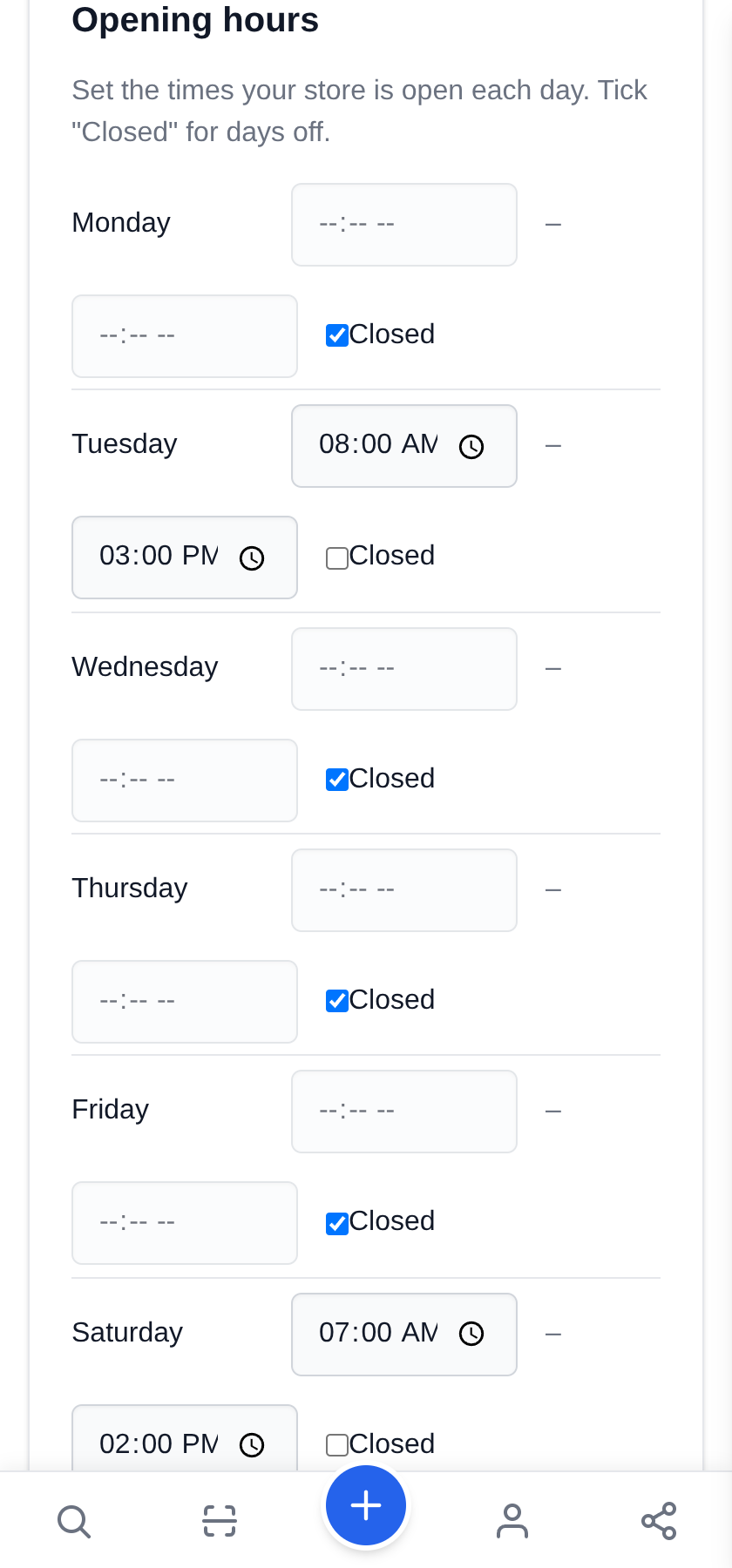
2 Tick only the days you are out
Under Opening hours, set the times for the days you work and leave Closed ticked for the rest. Here: Tuesday 8 to 3, Saturday 7 to 2.
This is not decoration. Your page lights up an "Open now" badge by itself on those two days and drops it the other five, so nobody goes looking for you on a Thursday.
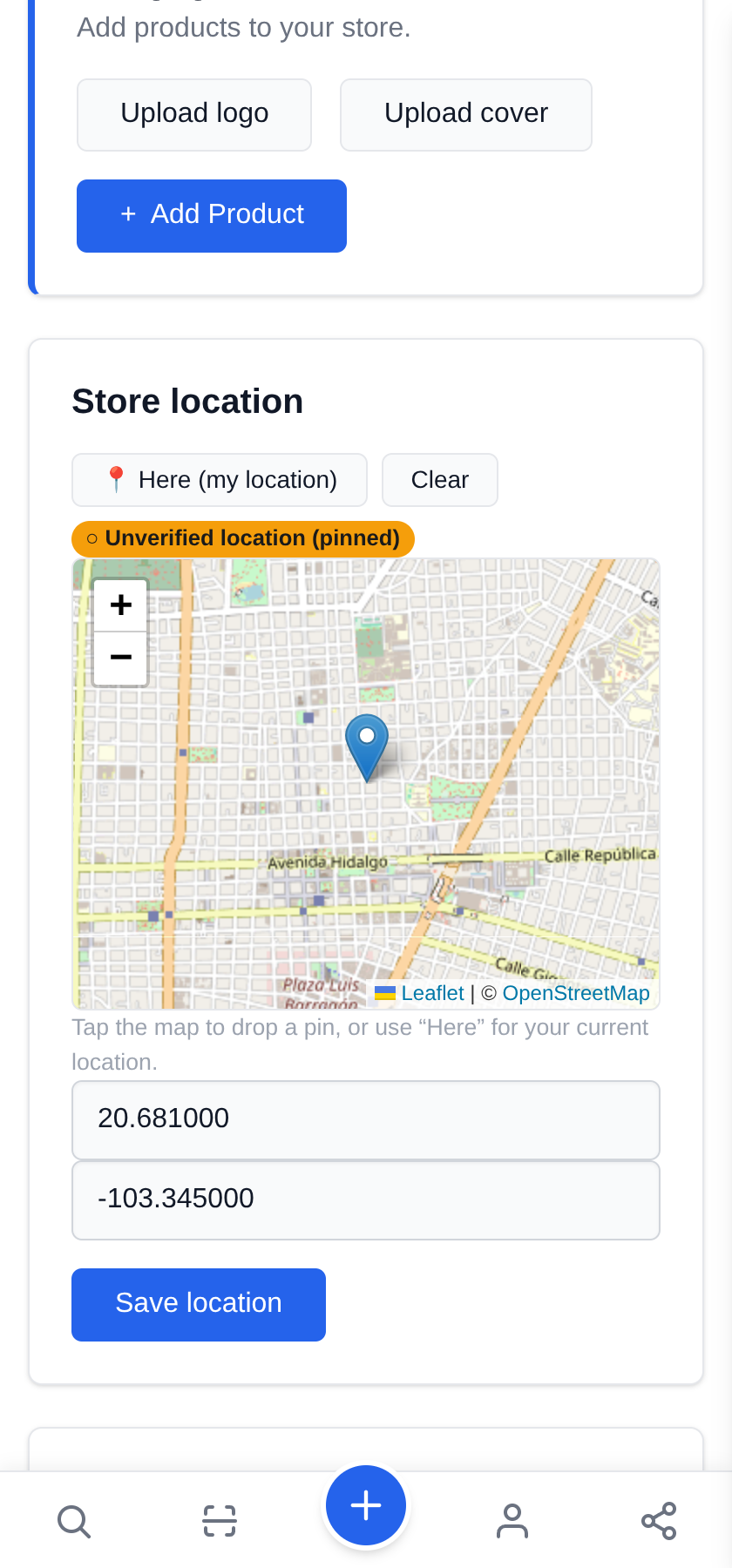
3 When you set up, tap "Here"
Under Store location, the 📍 Here (my location) button takes your phone's GPS fix and drops the marker where you are standing. Then Save location. Two taps, on your feet, before you have even opened the crates.
You can also tap the map to place the pin by hand. The difference matters: only a GPS fix counts as a verified location — a pin placed with your finger shows as unverified.
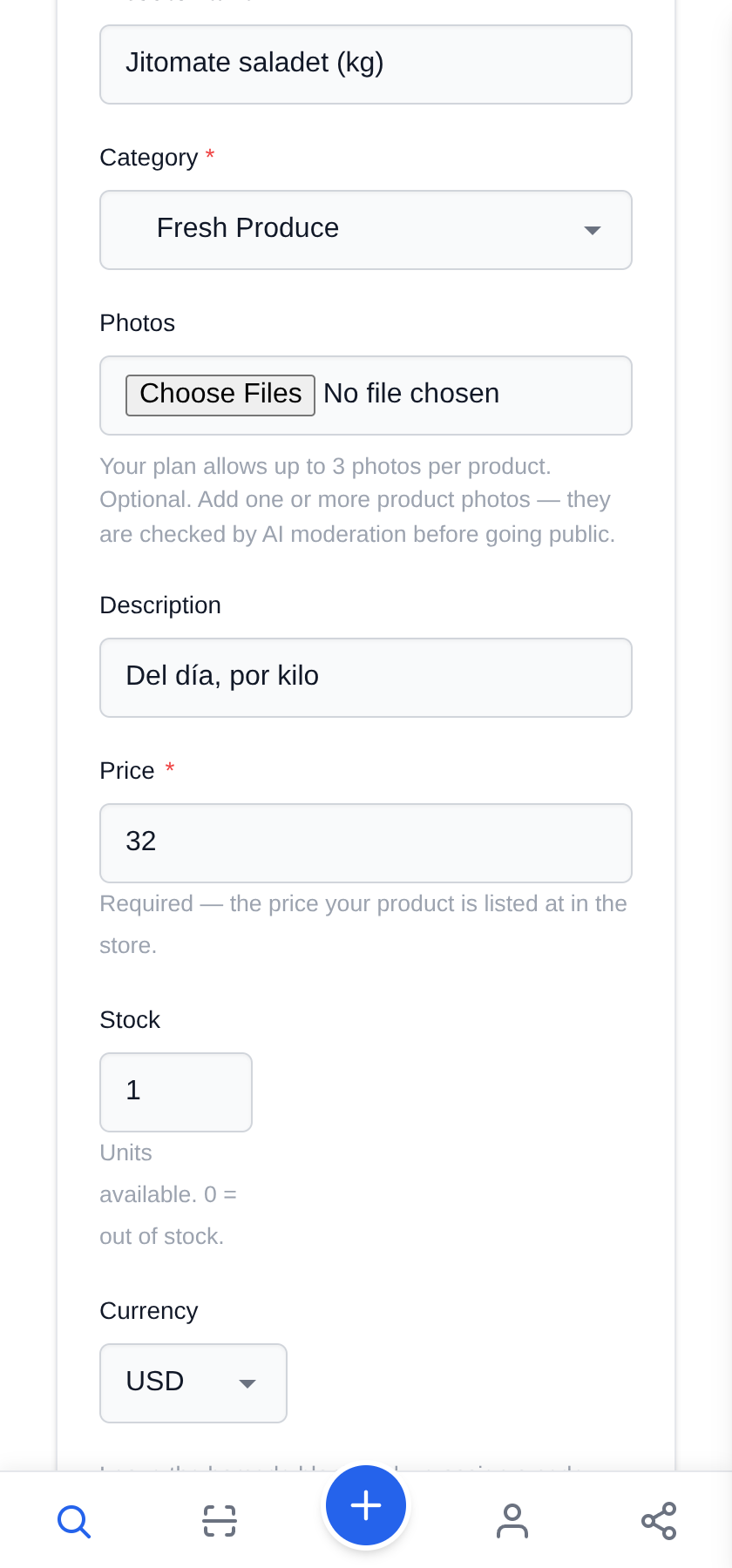
4 List what you brought today
Name, category and price. If you sell by weight, say so in the name — "Roma tomatoes (kg)" — because that is what the buyer reads next to the price.
Your products stay saved: tomorrow you do not upload them again, you only adjust what you brought.
5 Sold out: set the stock to zero
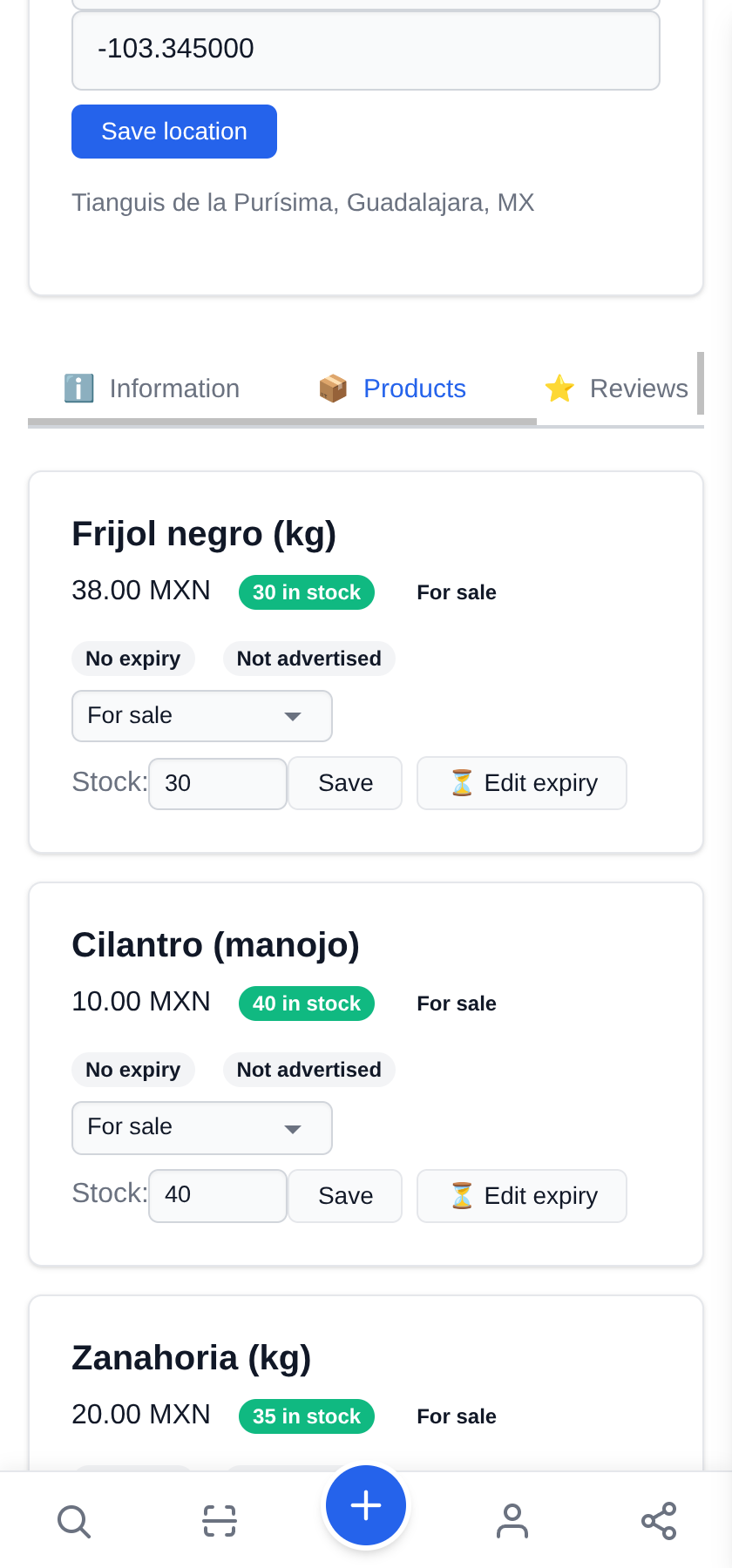
On your store's Products tab every row has its own Stock box. Type how many are left and hit Save; at 0 the product is marked out of stock and stops being offered immediately.
This is the mid-morning move, when the avocados are gone.
6 One QR for your banner
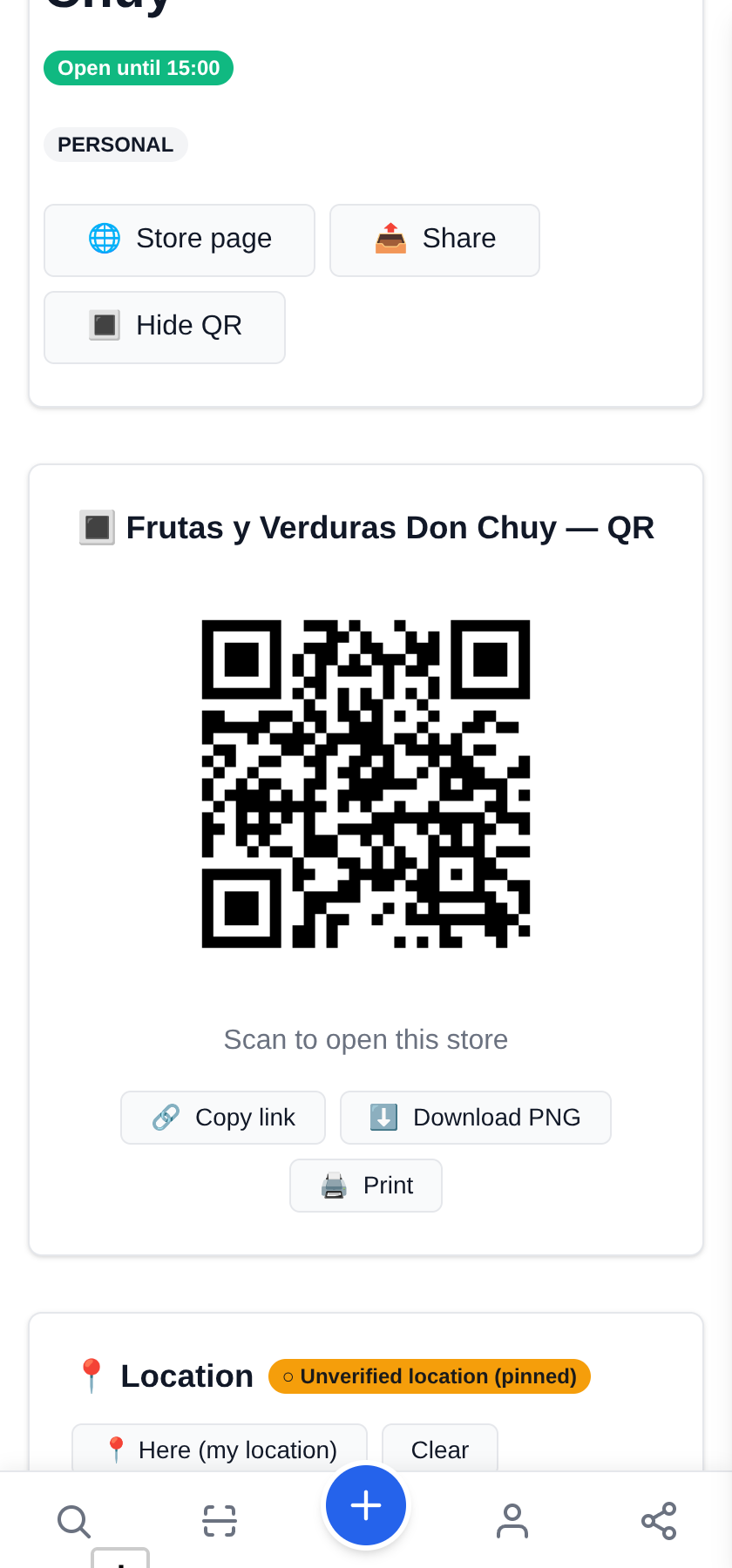
That code is your stall. Download it, print it big, and hang it from the banner or stick it on the scale.
It does not expire and it does not move: even if you stand somewhere else tomorrow and change every price, the same banner keeps working.
7 This is what your customer sees
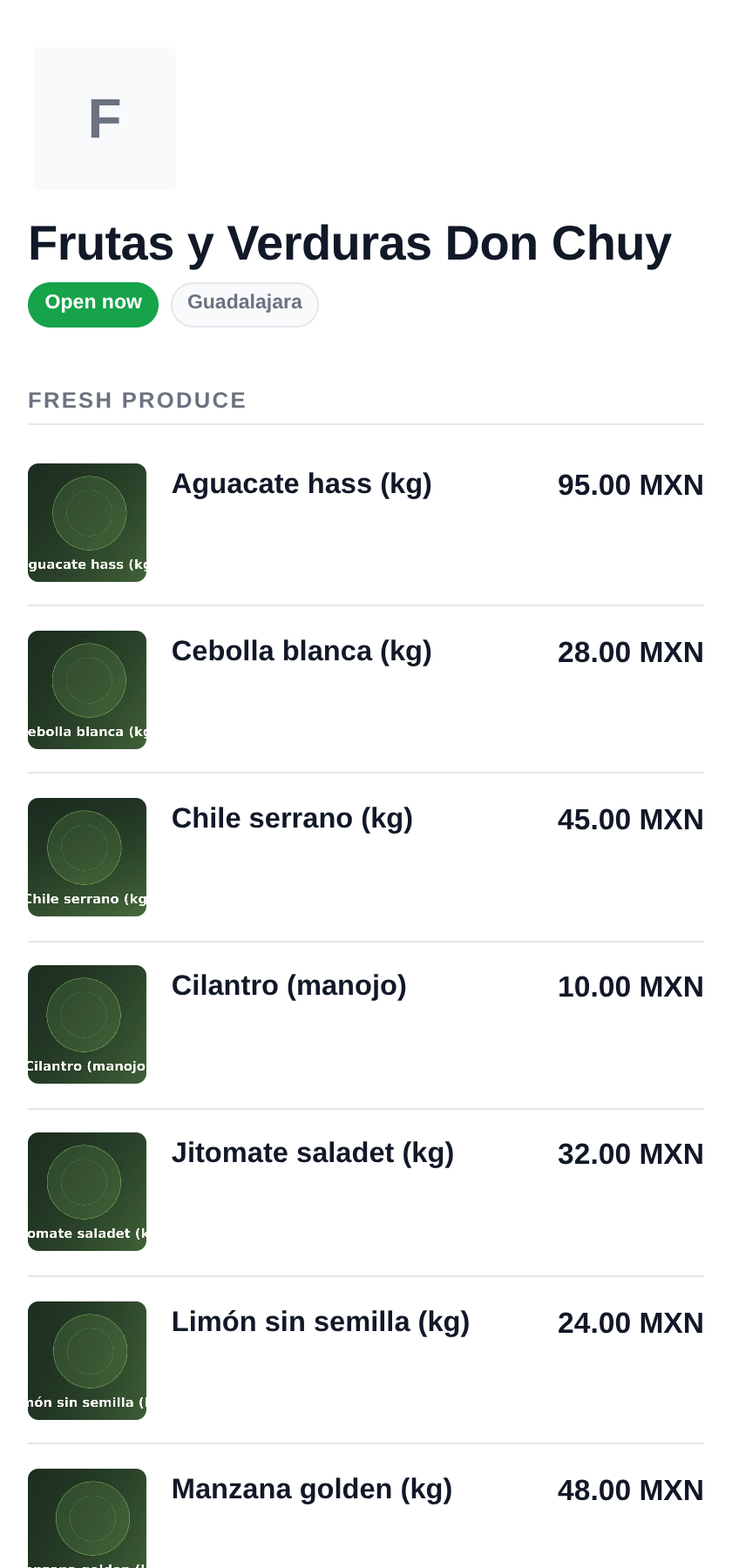
It opens on their phone instantly, with nothing to install: your name, whether you are open, and what you brought today with its price.
And in the store description, spell out where you stand each day — "Tuesdays at La Purísima, Saturdays at Plaza del Carmen". That is the line that gets you found again next week.
What to know
- Your store keeps ONE point on the map: today's. Moving it is one tap, and that is exactly what to do when you reach the stall.
- Hours, on the other hand, are per weekday: Tuesday and Saturday can have different times and the rest stay closed.
- The printed QR does not depend on where you are or what you charge: it points at your store, not at a place.
- It is free. The free plan holds 50 products, and publications last a month — renewable from your own inventory.
- Your customer installs nothing: your page opens in their phone browser, in their language.
- Every product goes through an automatic review before going live. It is usually quick; meanwhile you see it, marked as pending.
✈️ Telegram · @JamboQR · 𝕏 @jamboqrmx · Facebook · JamboQR · Instagram · @jamboqr