One business, one page and one QR, but more than one person with their hands on the stock. Everyone posts, and you can tell who uploaded what.
A family business almost never has just one person: one makes the dough, another the fillings; one opens early, another closes. If the store lives on one person's phone, the other depends on her to change a price.
The shared store solves that: the same store, the same QR on the stall, and both of them can post. This guide's example is Tamales Las Hermanas: Rosa is the owner and Lupita the admin.

1 Create the business's store and share it
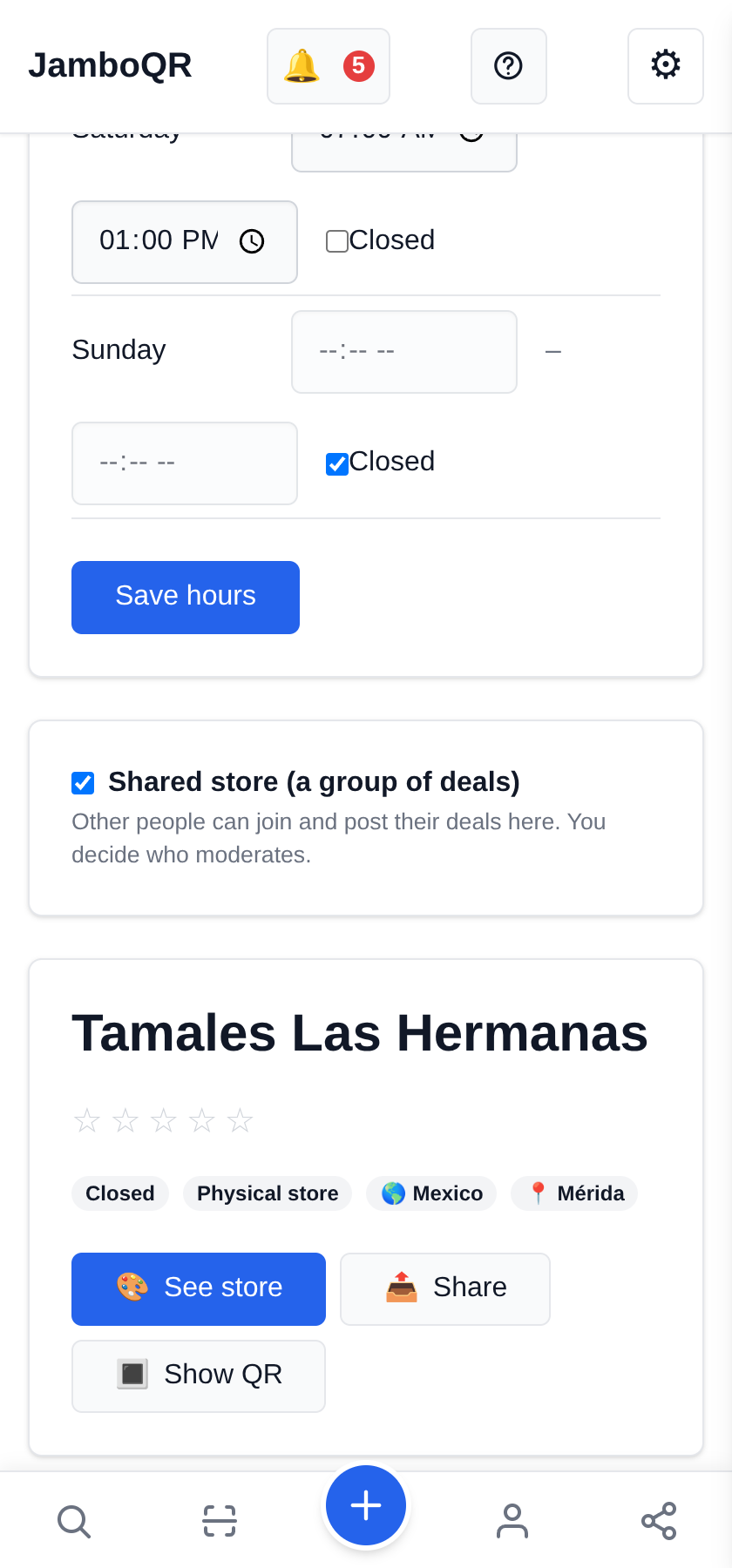
Under My Stores, Create Store with the business's name, its address and its opening hours. Then, in Manage, switch on Shared store (a group of deals).
Nothing else to touch here: the products keep the stall's location, which is where they are.
2 Invite your partner and give her a role
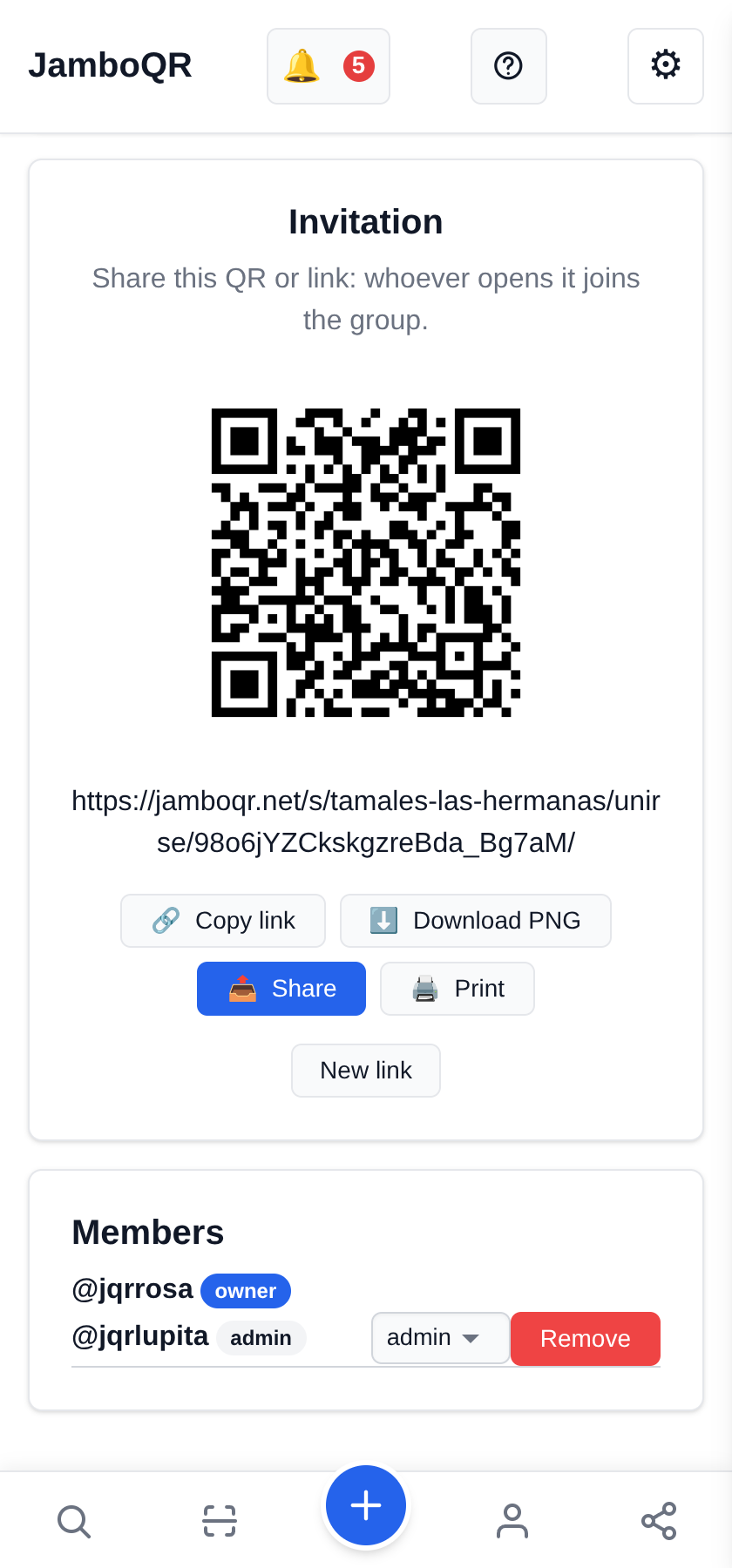
On the Group tab, the Invitation has a link and a QR. Send it over; as soon as she opens it she is in, under Members.
Then change her role to admin: that way she can edit the store and any product, just like you. A member only edits their own. The only things reserved for the owner are deleting the store and stopping the sharing.
3 Every product says who uploaded it
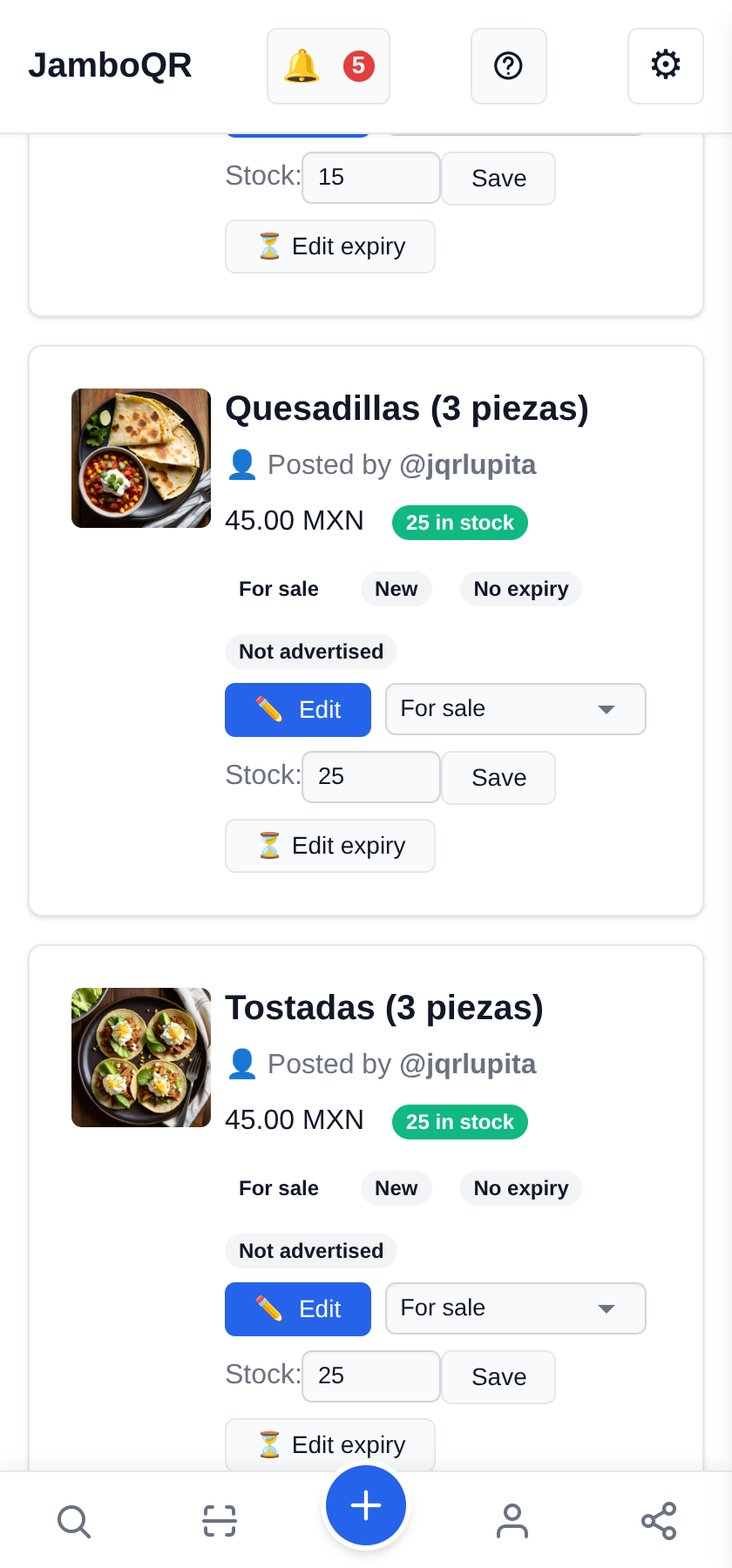
Under Products, each one shows Posted by and the user who uploaded it. The tostadas and quesadillas are Lupita's; the chicken tamales, Rosa's.
It is not for keeping tabs on anyone: it is so you know who to ask when a price looks wrong.

4 One QR for the stall
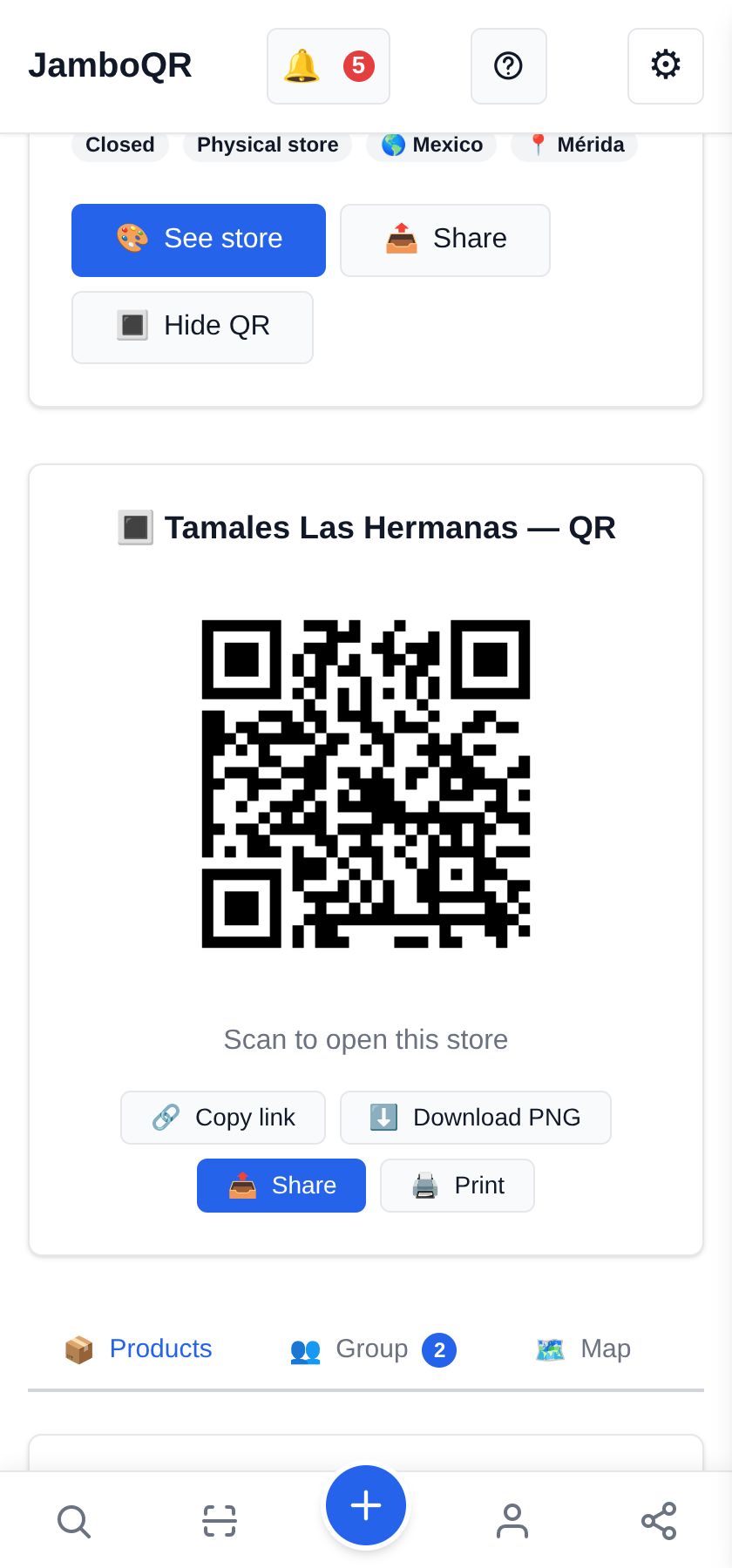
The QR belongs to the store, not to a person. Print it once, stick it on the stall, and it keeps working whatever the prices or whoever is serving.
5 What the customer sees
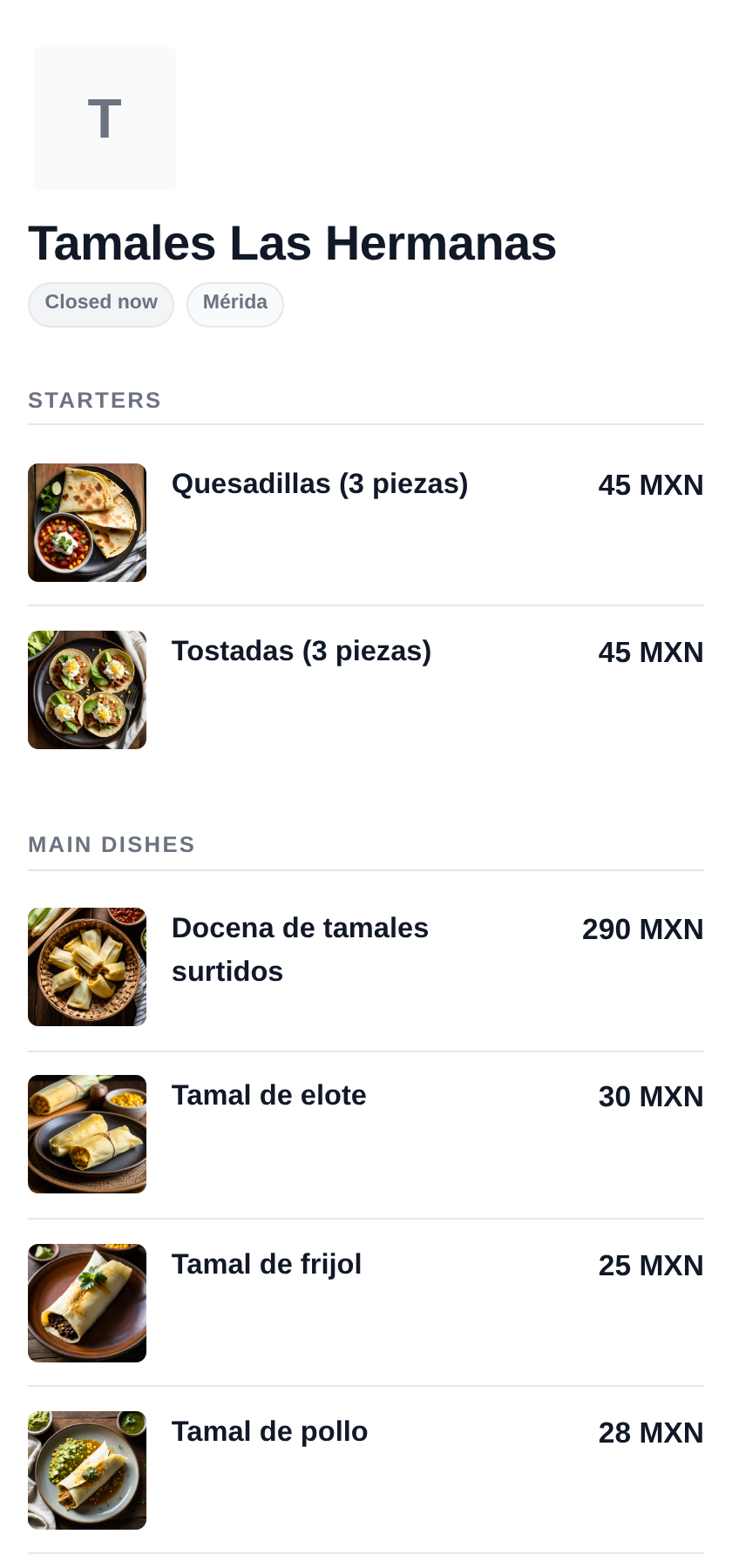
The stall's menu, with photos and prices, open or closed according to the hours. The customer does not care which of the two uploaded it: they see one business.
Tap the screenshot to open this guide's example store.
What to know
- The owner decides everything; an admin edits the store and any product; a moderator removes what should not be there; a member edits their own.
- If someone leaves the business, Remove takes them out without deleting what they uploaded; you can edit or withdraw it yourself.
- If you switch "shared" off, what was posted stays, but only you can add and edit.
- The invitation link can be renewed: New link cancels the previous one.
- Each product counts against the plan of whoever posts it, not only the owner's.
- It is free: the free plan includes your personal store and one more store.

✈️ Telegram · @JamboQR · 𝕏 @jamboqrmx · Facebook · JamboQR · Instagram · @jamboqr