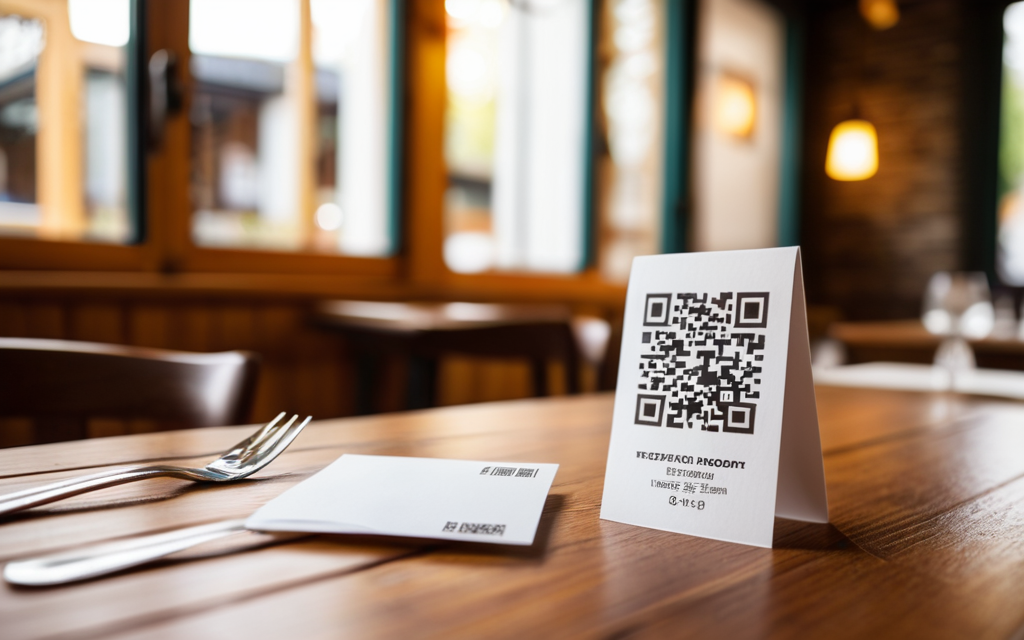
Ten minutes from now you can have a code taped to the table. Guests scan it and see your current menu — nothing to install.
A printed menu is out of date the day you raise a price. A QR menu is not: you change the price on your phone and the code already taped to the table shows the new one. Nothing gets reprinted.
This is the whole path, step by step, with real screenshots. No card, no technical knowledge.
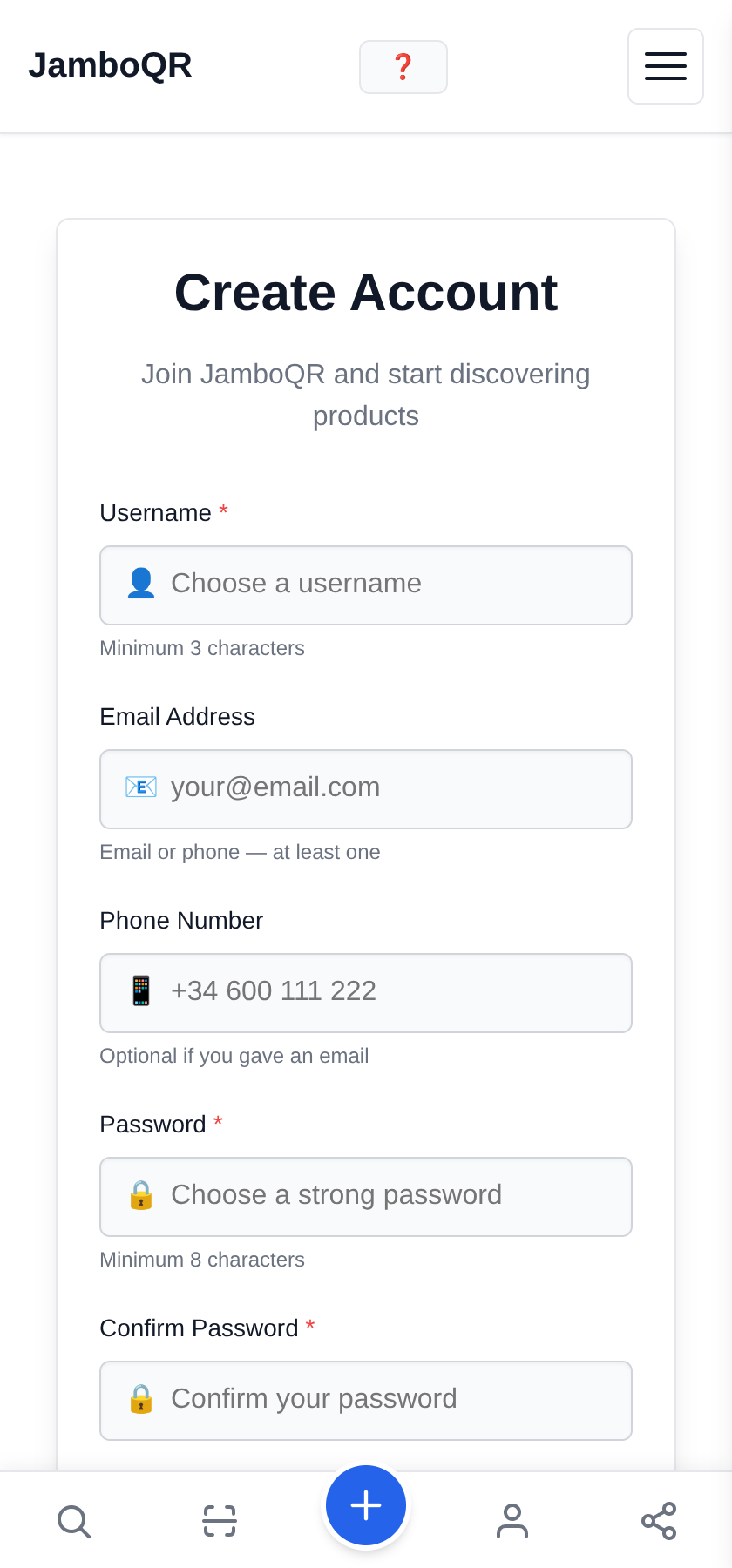
1 Create your account
An email or a phone number, and a password. That is the whole form. It is free and no card is asked for.
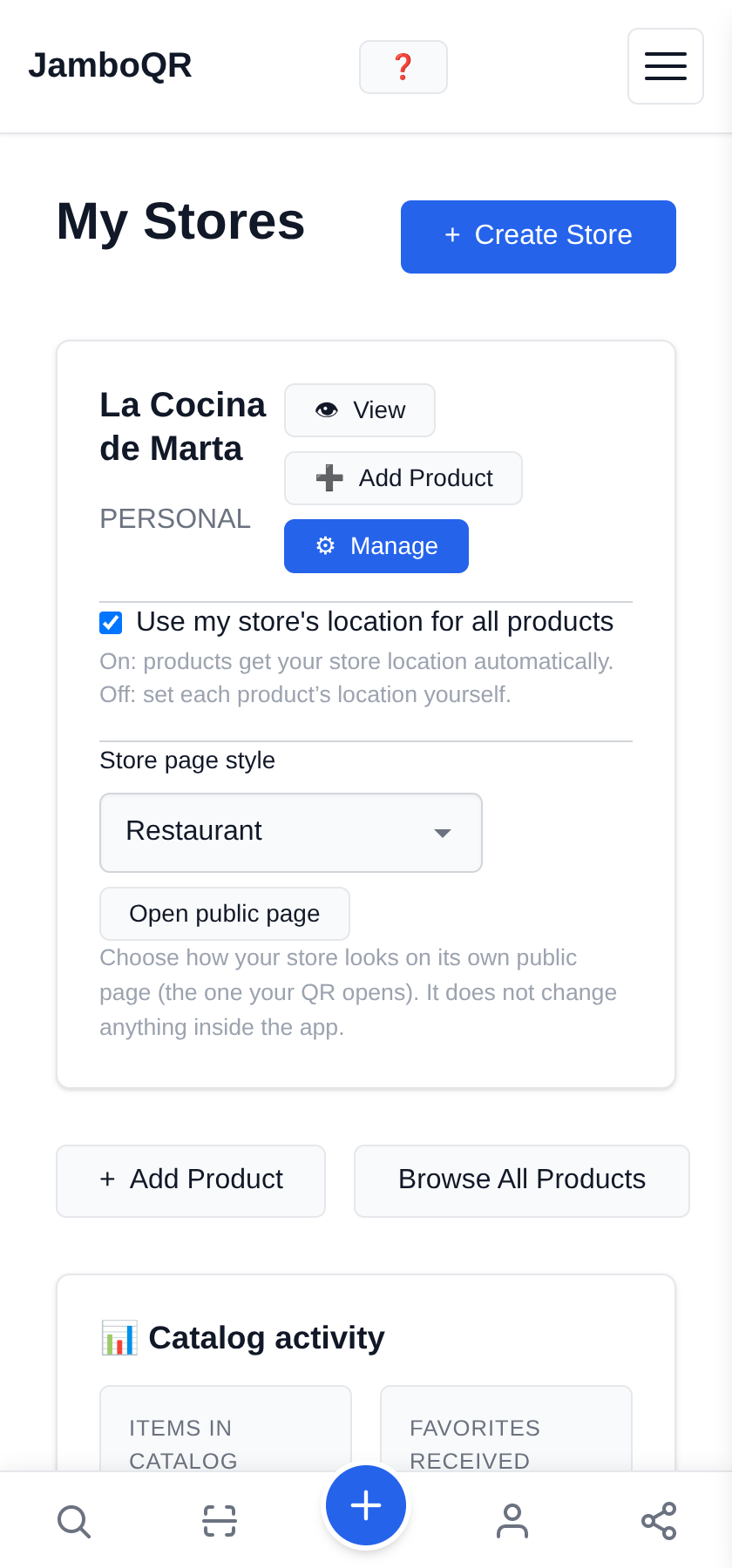
2 Your store already exists
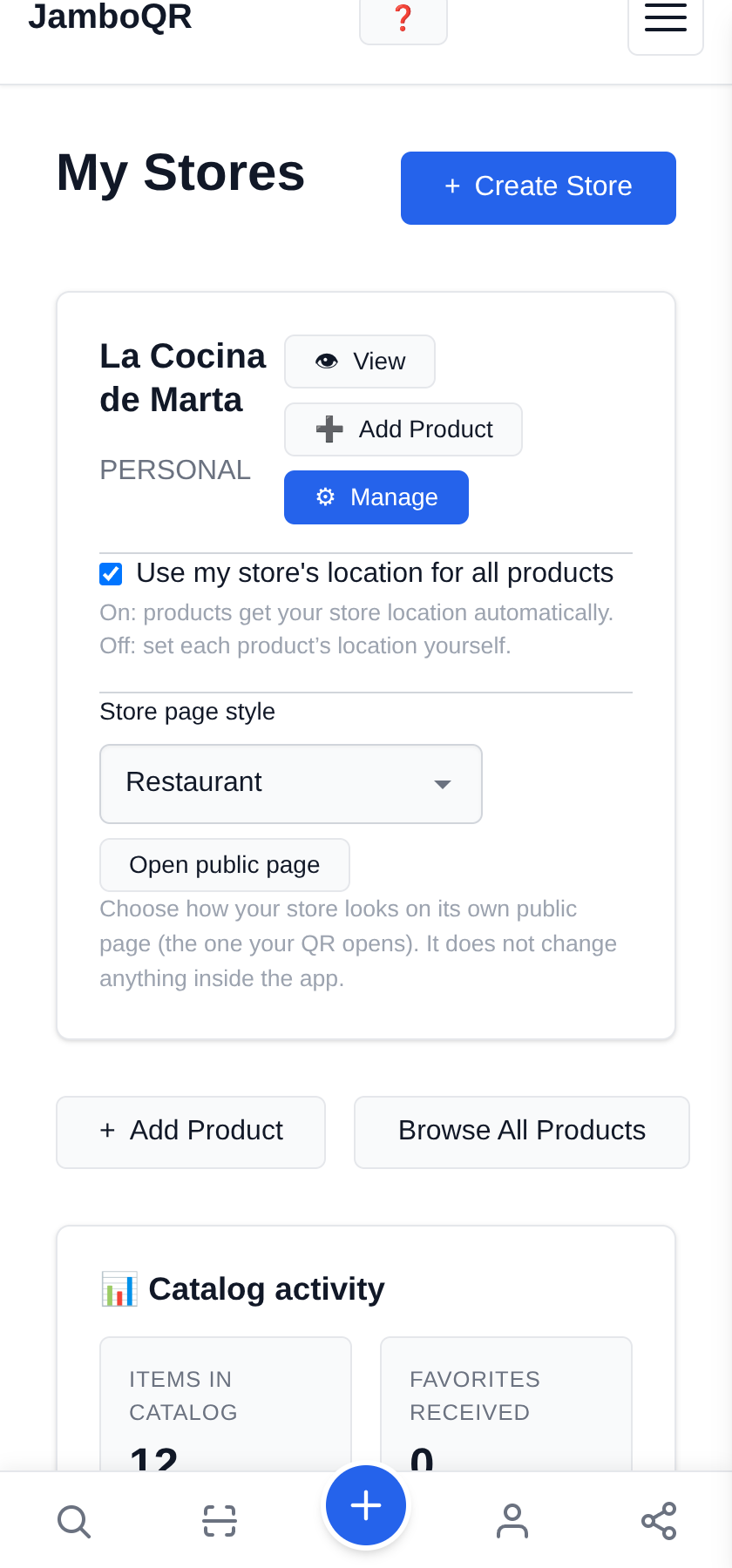
Signing up creates it. There is nothing to set up before you start: open My Stores and it is there.
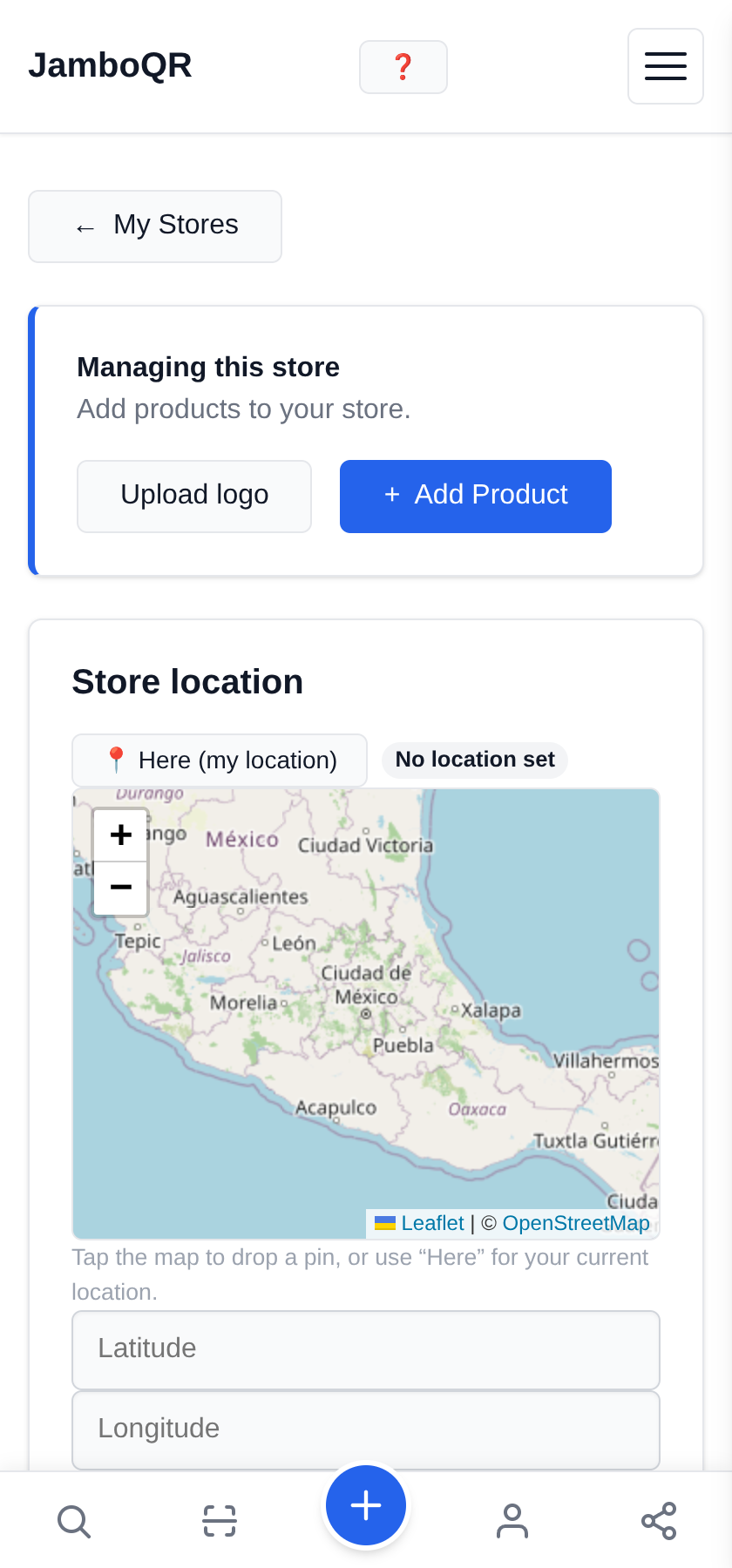
3 Add your name and opening hours
The name, the address, and what time you open each day. The hours do real work: your page shows an "Open now" badge by itself while you are open, and drops it when you close.

4 Add your first dish
A name, a price, and which part of the menu it belongs to. The short note — "with rice and tortillas", "spicy" — is the one that saves your waiter a question.
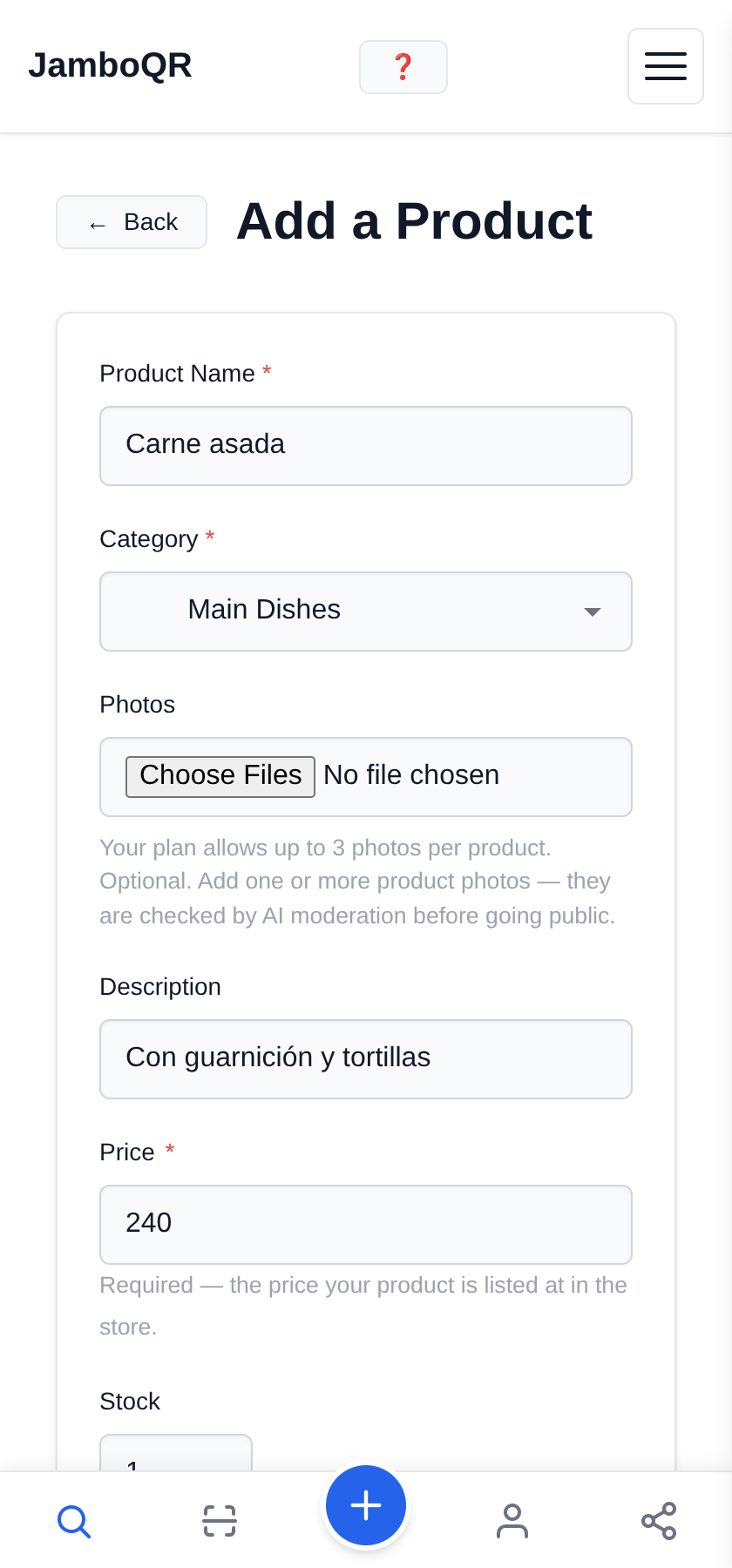
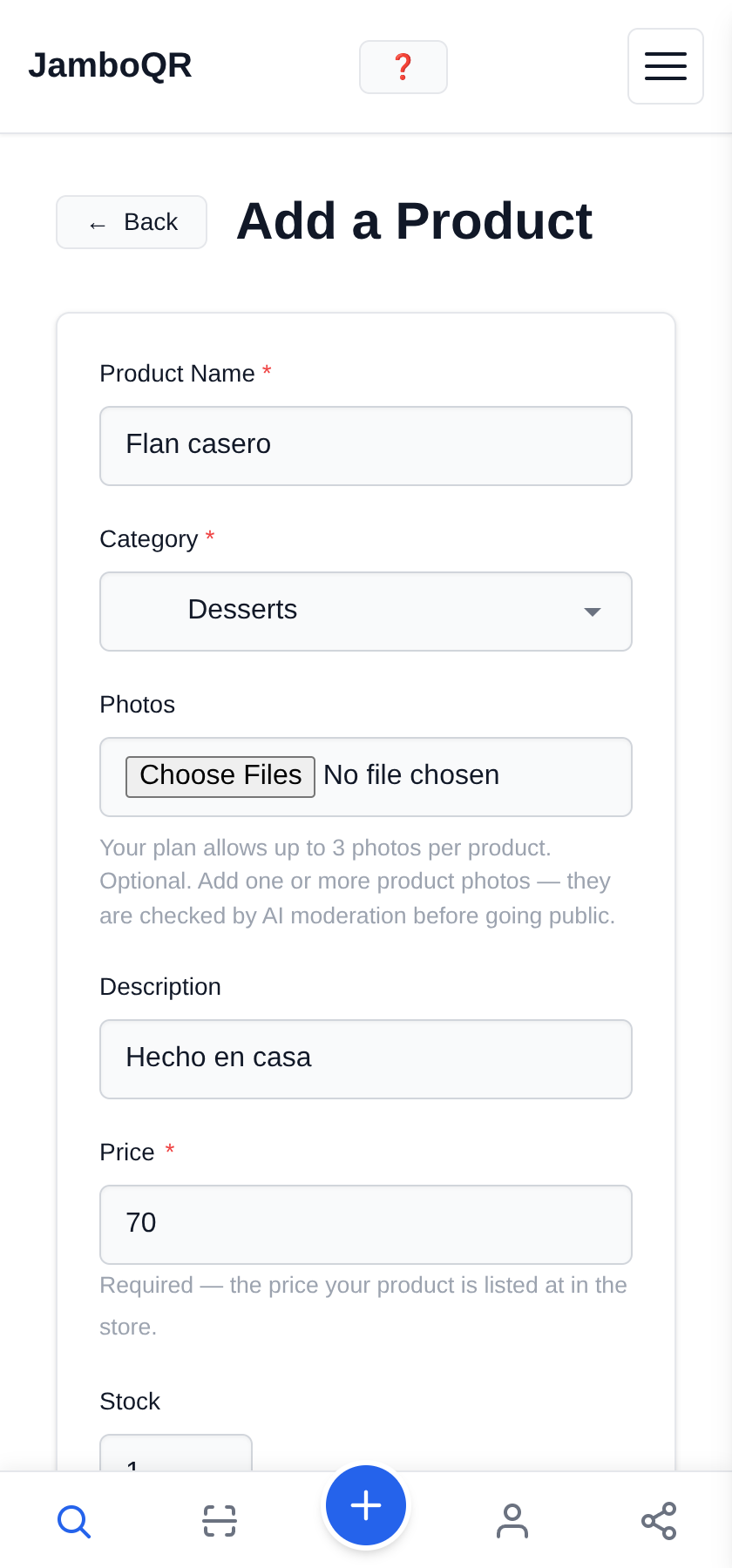
5 Add another, in a different section
Here is the trick: pick Desserts instead of Main Dishes. You never sort anything by hand — the menu arranges itself, in the order a menu is actually read: starters first, sweet things last.
6 Choose the Restaurant style
One dropdown, one choice. It changes how your public page looks: the dish leads, the price sits on the right, the photo is optional. Nothing changes inside the app.
7 Download your QR and print it
That code is your menu. Download it, print it, tape it to the table, the window or the door. It never expires — change every price tomorrow and the same piece of paper still works.

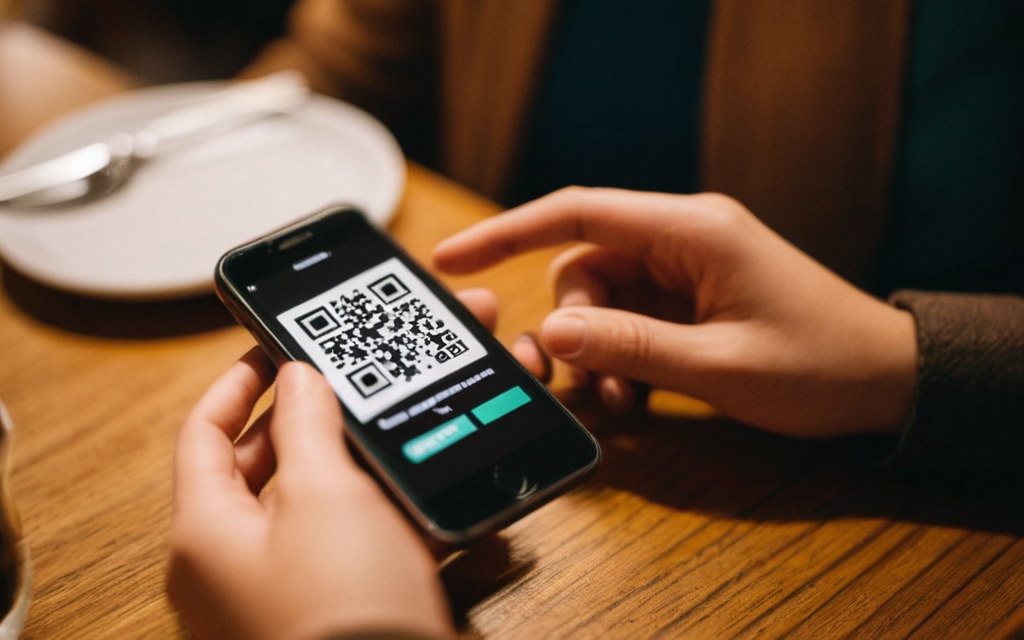
8 This is what your guest sees
It opens on their phone straight away, with no app to download. Run out of something and you mark it sold out; it stops being offered immediately.

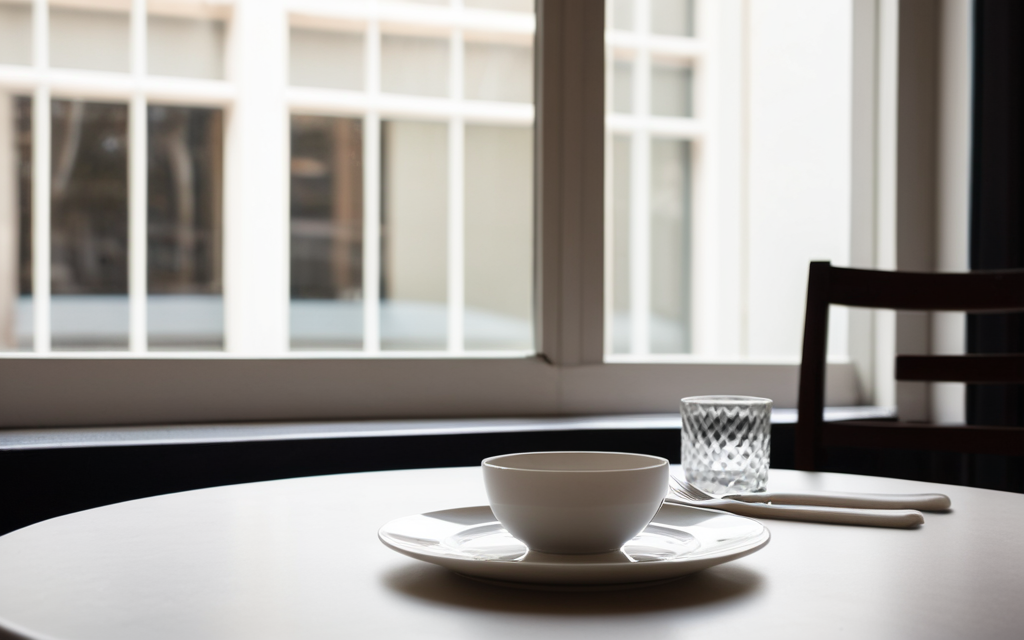
What to know
- It is free. No thirty-day trial, no card.
- Your guest installs nothing — the menu opens in their phone browser.
- The page speaks 25 languages and shows the reader theirs. Your dish names stay exactly as you wrote them.
- Change a price and the printed QR already shows it. Nothing is reprinted.
- On the free plan the menu shows the first ten photos; the rest of the dishes come out as text, with their price. Lifting that cap is what the paid plans add.
- Each dish goes through an automatic review before it is published. It is usually quick, and meanwhile you can see it, marked as pending.
✈️ Telegram · @JamboQR · 𝕏 @jamboqrmx · Facebook · JamboQR · Instagram · @jamboqr