A free QR reader with no ads, which also tells you what you can do with what you scan.
There are QR codes on restaurant tables, on shop counters, on store signs and on the café wall with the wifi password. Almost any reader opens them; what differs is what happens next.
The JamboQR scanner reads any QR code, ours or not, and gives you clear options: open it, copy it or share it. If the code belongs to a JamboQR store or menu, it opens it straight away. And with a product's barcode it tells you who sells it and at what price.
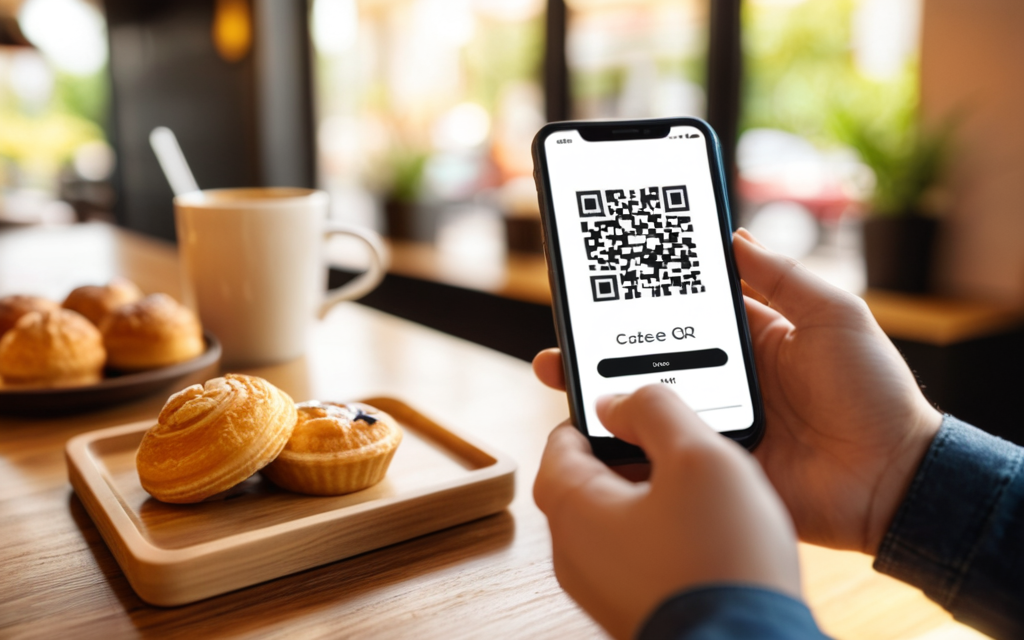
1 Open the scanner and point
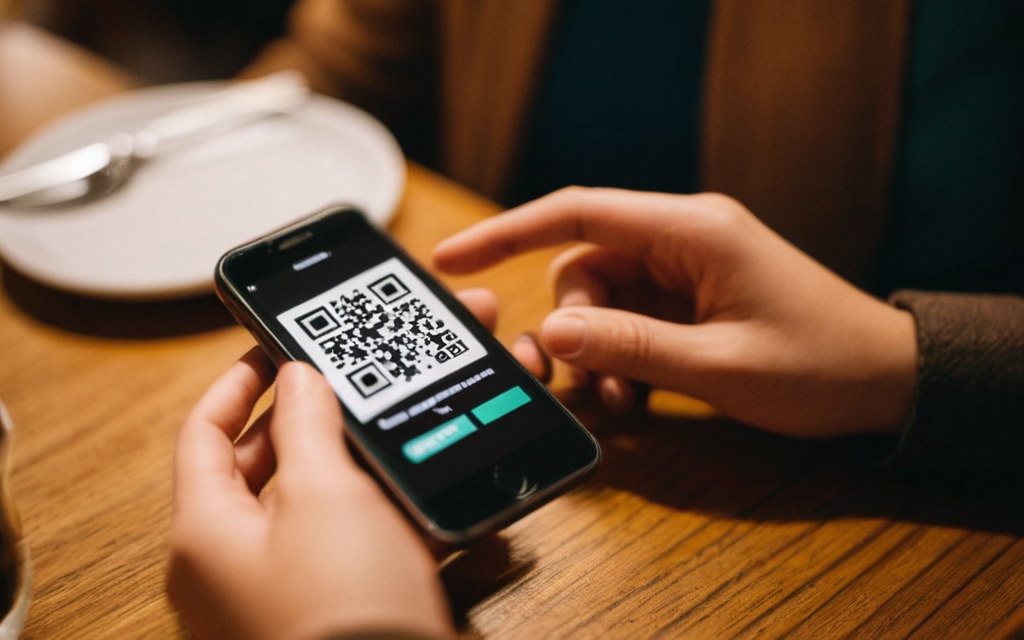
Tap the square button in the bottom bar, then Start camera. The first time, the phone asks for permission to use it.
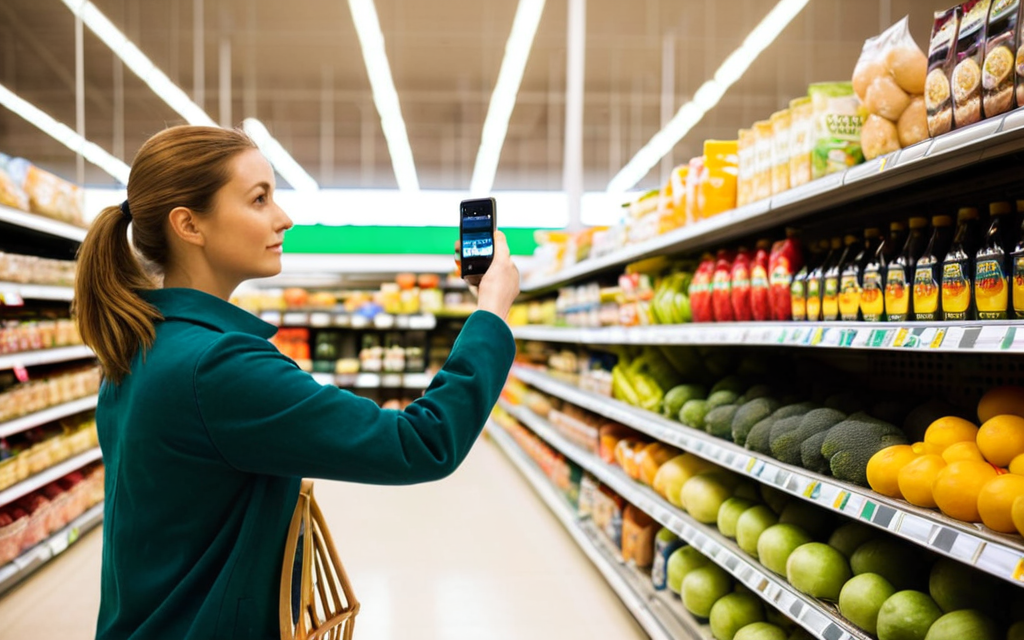
Point at the QR code and hold the phone still for a moment: as soon as it reads it, the result appears right below the button.
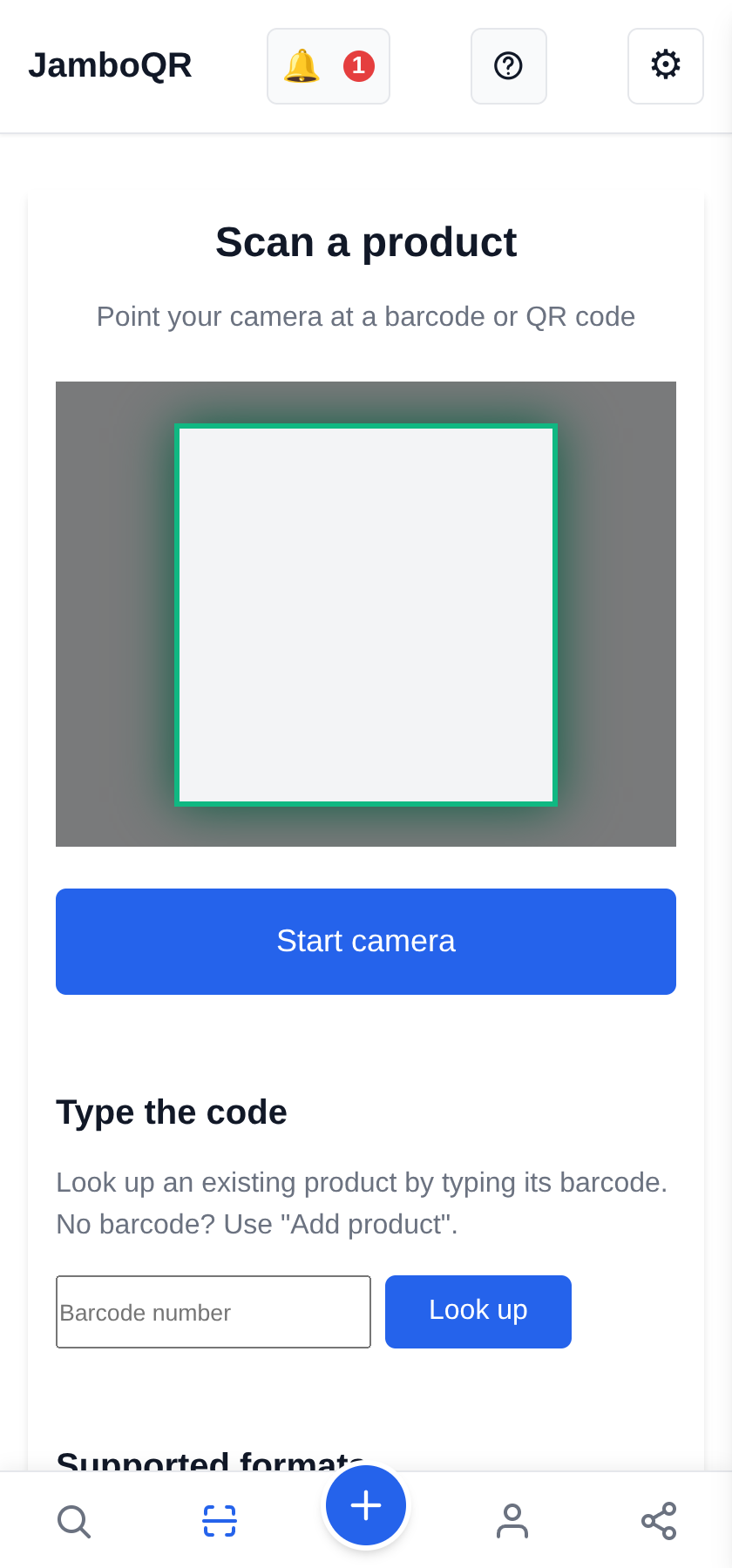
2 A link: open it, copy it or share it
If the code is not a JamboQR one, you are not left stranded. It shows you what it says —in full, so you can see where it leads before going there— and three buttons: Open in another app, Copy and Share.
Seeing a link before opening it is a good habit: a QR sticker placed over another one can take you somewhere you did not expect.
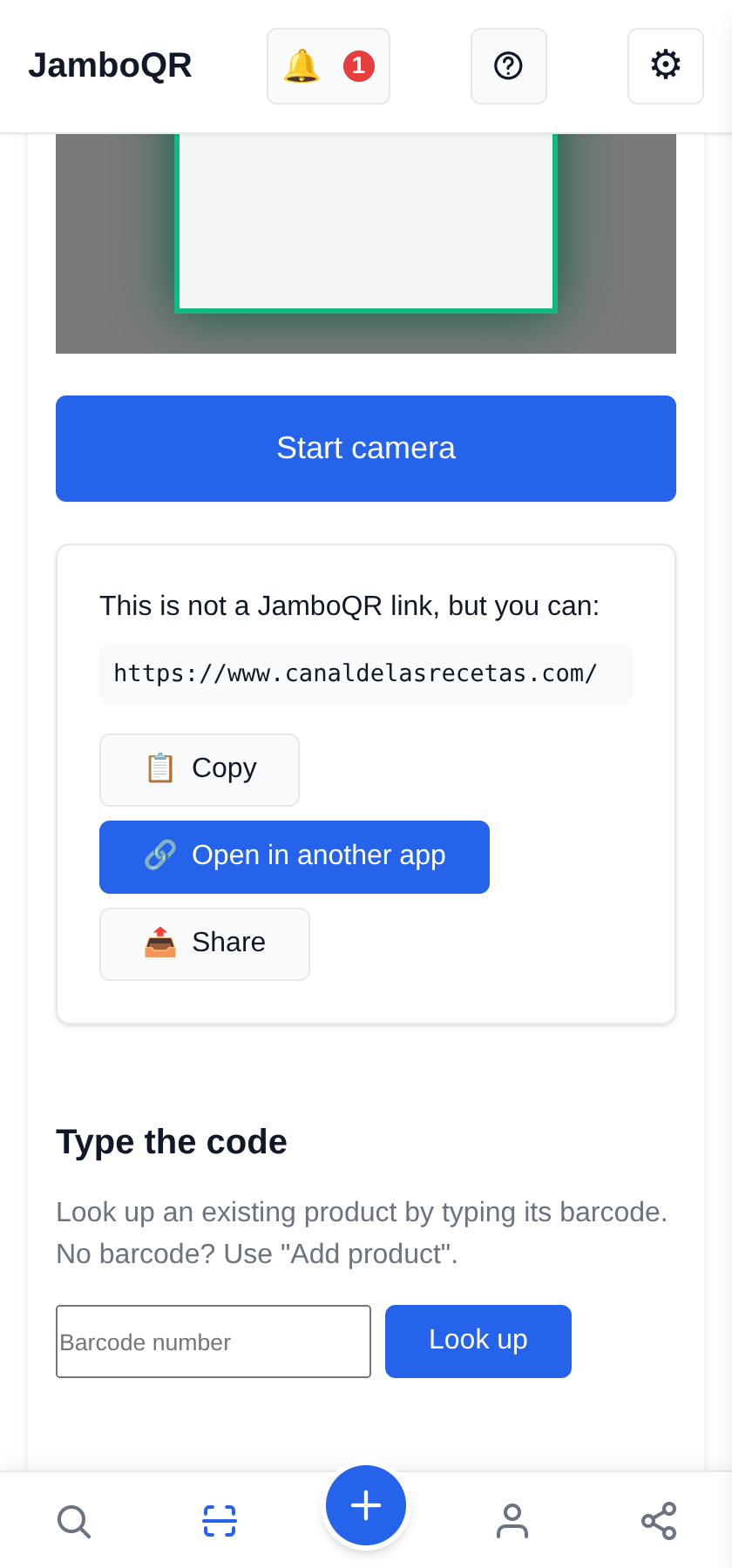
3 The wifi password and other text
Not every QR code is a link. The café wifi code carries the network name and its password; others carry a phone number, an address or plain text.
JamboQR shows it as it is, so you can Copy the part you need or Share it with whoever came with you.
4 A store or menu QR code opens directly
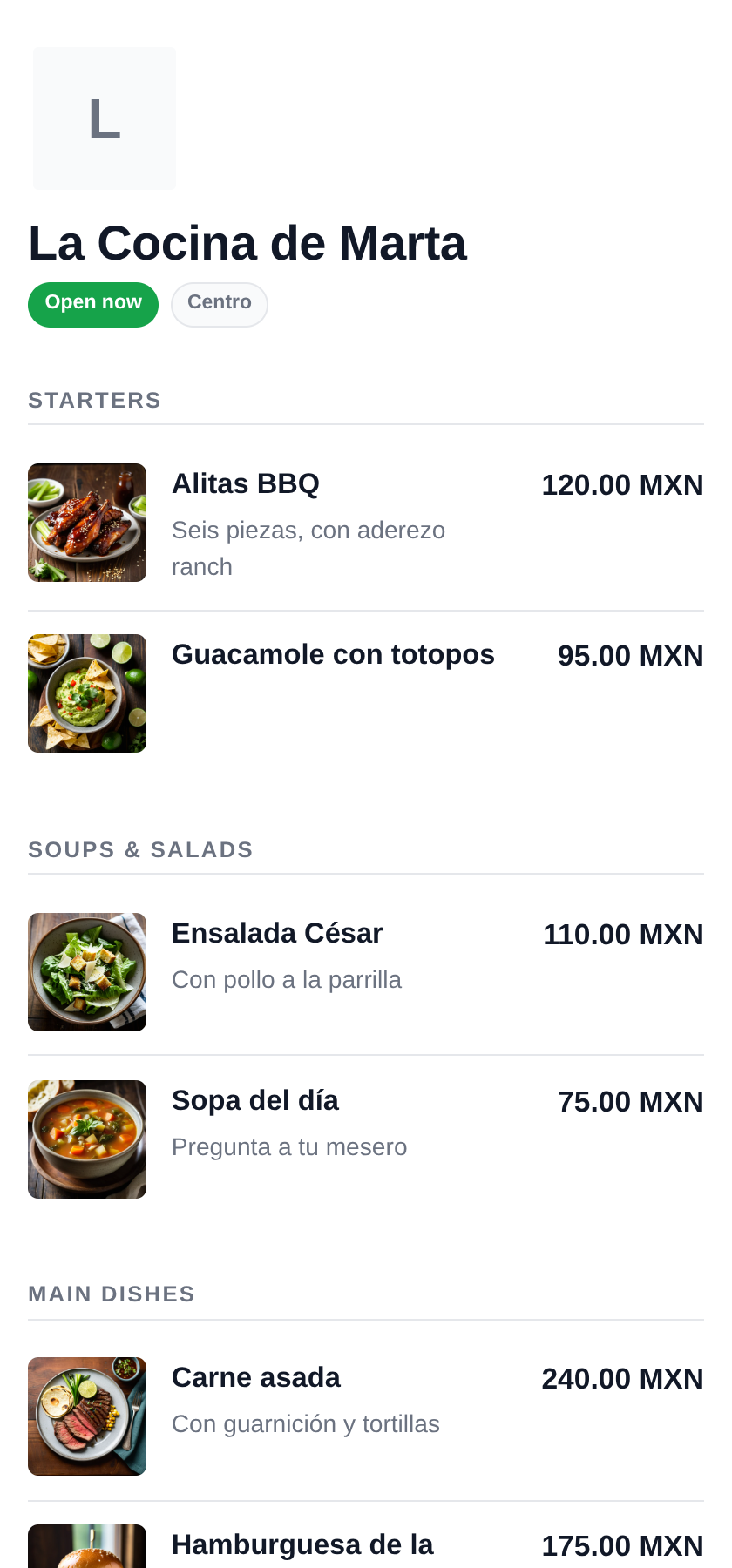
If the code is a JamboQR one —on a restaurant table, a counter or a market stall— there are no steps in between: the menu or the catalogue opens, with photos and prices, in your language.
The same goes for the QR code of a product or a profile.
5 Look up a product by its barcode
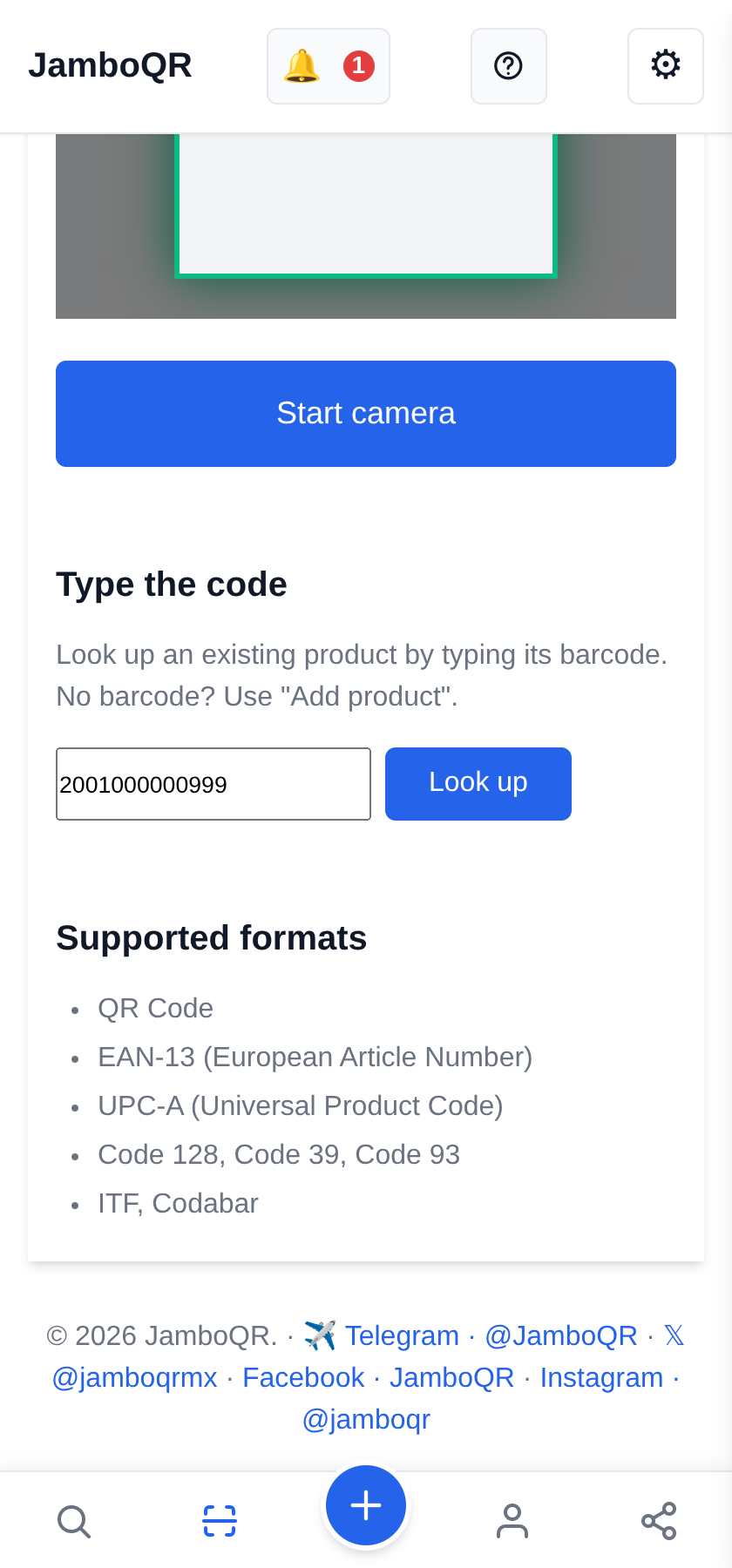
Supermarket products carry a barcode with 13 digits underneath. Type them in Type the code and tap Look up.
For now the camera reads QR codes; barcodes are typed in by hand. This also helps when a QR code is torn or blurry and has its code printed below.
6 "Product found"
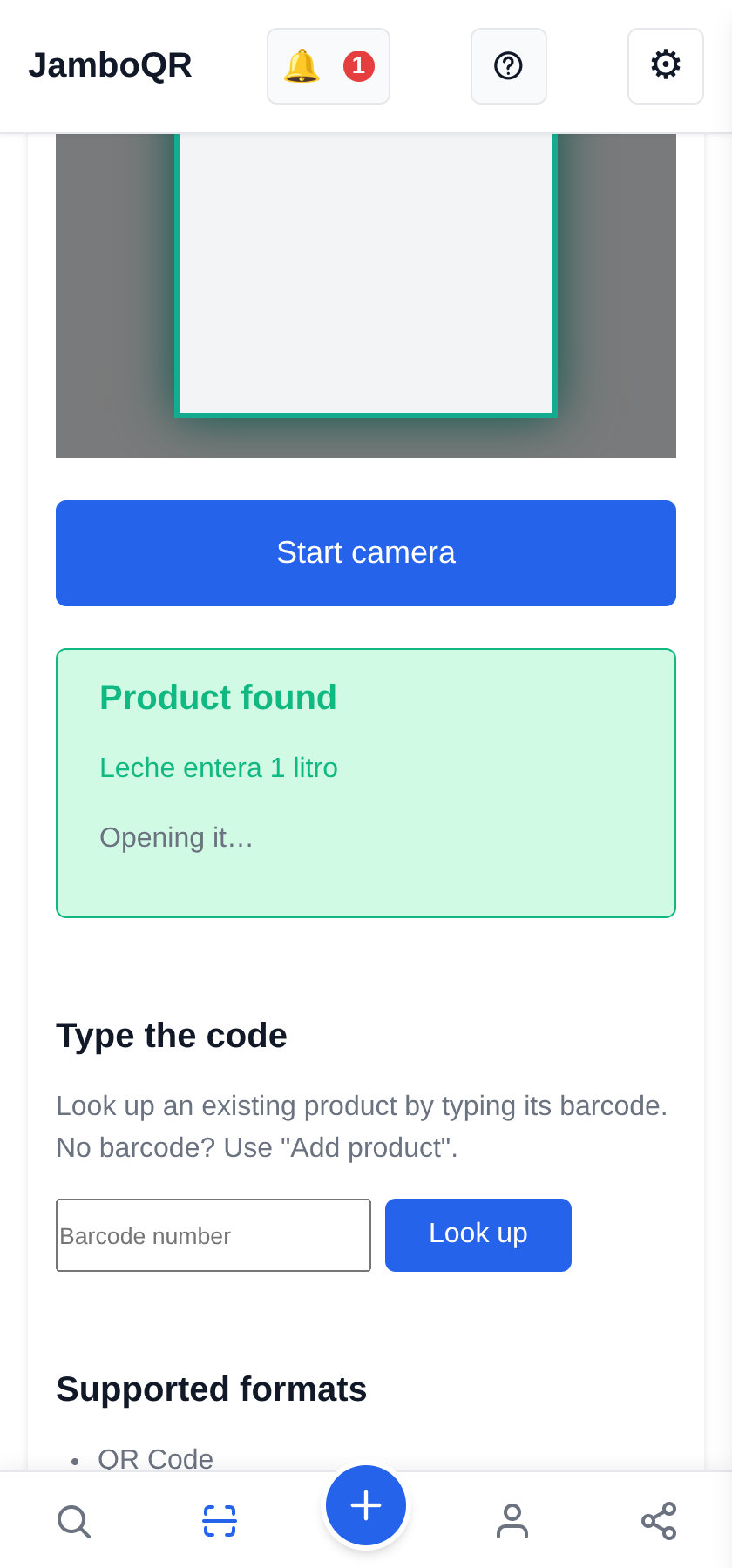
If someone has already added it, JamboQR says Product found and opens its page by itself after a couple of seconds.
7 Where it is sold, and at what price
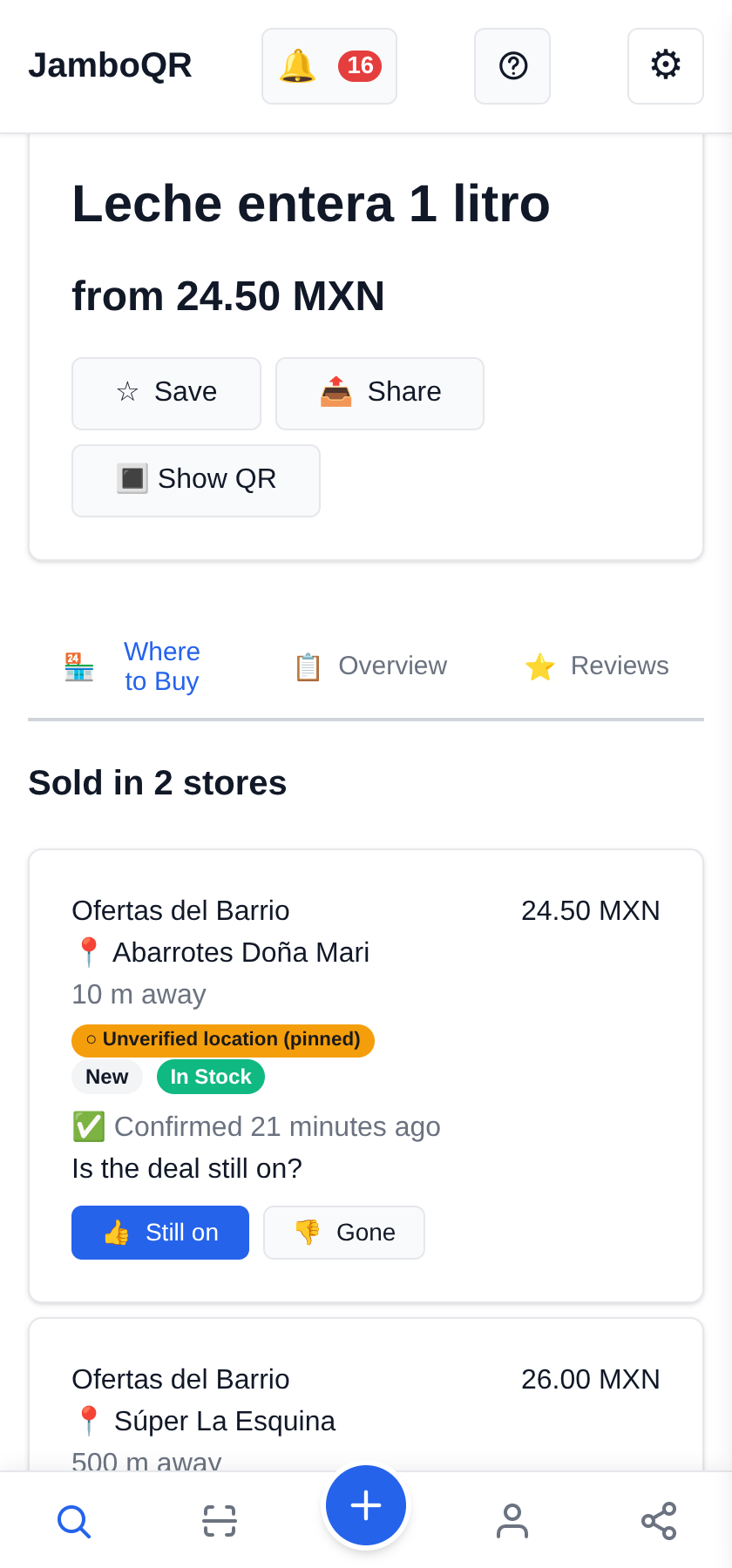
On the product page, Where to Buy lists every store or place that has it, with its price and how far it is from you. Here, the same milk in two neighbourhood stores, at different prices.
So you know where it pays to go before you leave home.
8 Nobody has it? Add it yourself
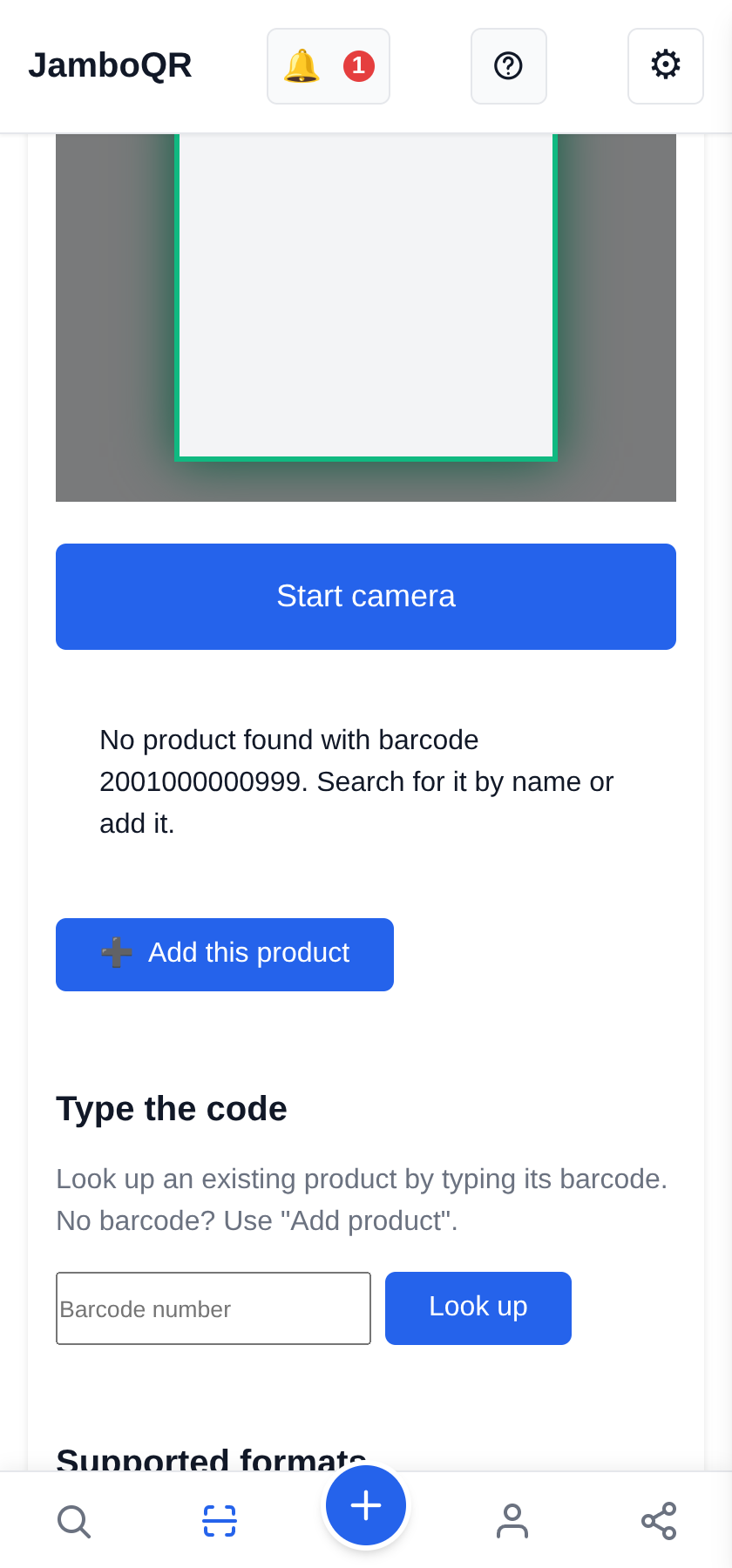
If the code is not on JamboQR yet, it tells you so and offers Add this product with that code already filled in. If you sell it, put it in your store; if you saw it cheap, share it with your deal club.
9 And while you are at it: your own QR code
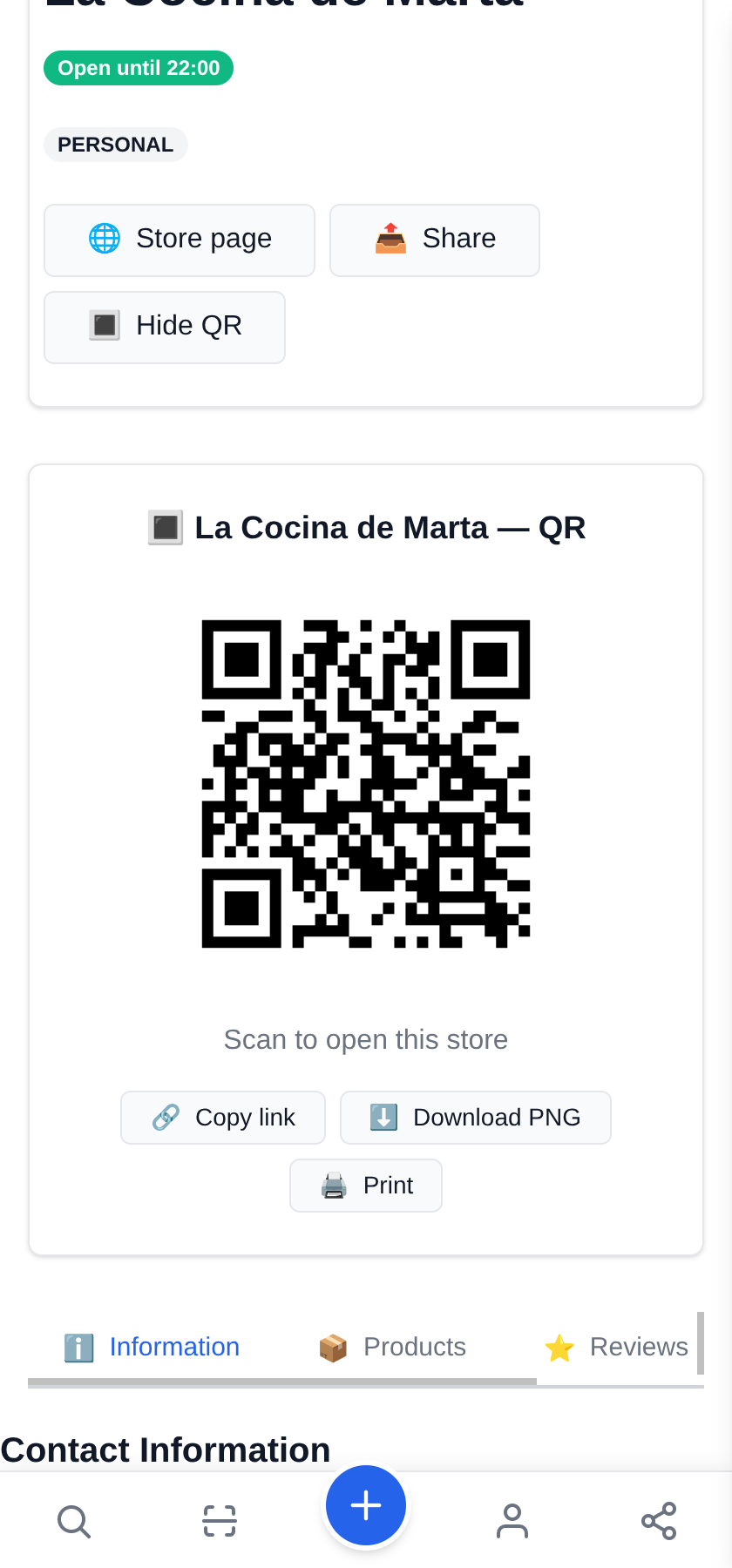
Your store, each product and your profile have their own QR code to print, which others will read with this same scanner or with their phone camera.
How to create it and where to put it is in the guide Put your restaurant menu on a QR code, in this same help.
In short
- It reads any QR code, not only JamboQR ones.
- It shows you the content before opening anything, and you can copy or share it.
- With a product's barcode, you see where it is sold and at what price.
- No ads and no tracking.
- It works in the Android app and in your phone's browser.
✈️ Telegram · @JamboQR · 𝕏 @jamboqrmx · Facebook · JamboQR · Instagram · @jamboqr